

Set Up Your Telephony Provider
Choose between replacing LeadConnector with P2P Messenger or running them side-by-side.
After installing WhatSnap, decide how you want to route messages: replace LeadConnector entirely, or run both providers side-by-side.
The Two Options
Option 1: Replace LeadConnector (Recommended)
Set P2P Messenger as your telephony provider. GHL's native SMS actions route through your connected devices.
| What Works | Details |
|---|---|
| Native Send SMS actions | Workflows use your devices automatically |
| Wait for Reply steps | Full workflow functionality preserved |
| AI booking bots | GHL's AI features work normally |
| Voice calls | Still use Twilio/LeadConnector (unchanged) |
Recommended for 99% of users. You get full GHL automation power with the deliverability of real devices.
Option 2: Side-by-Side
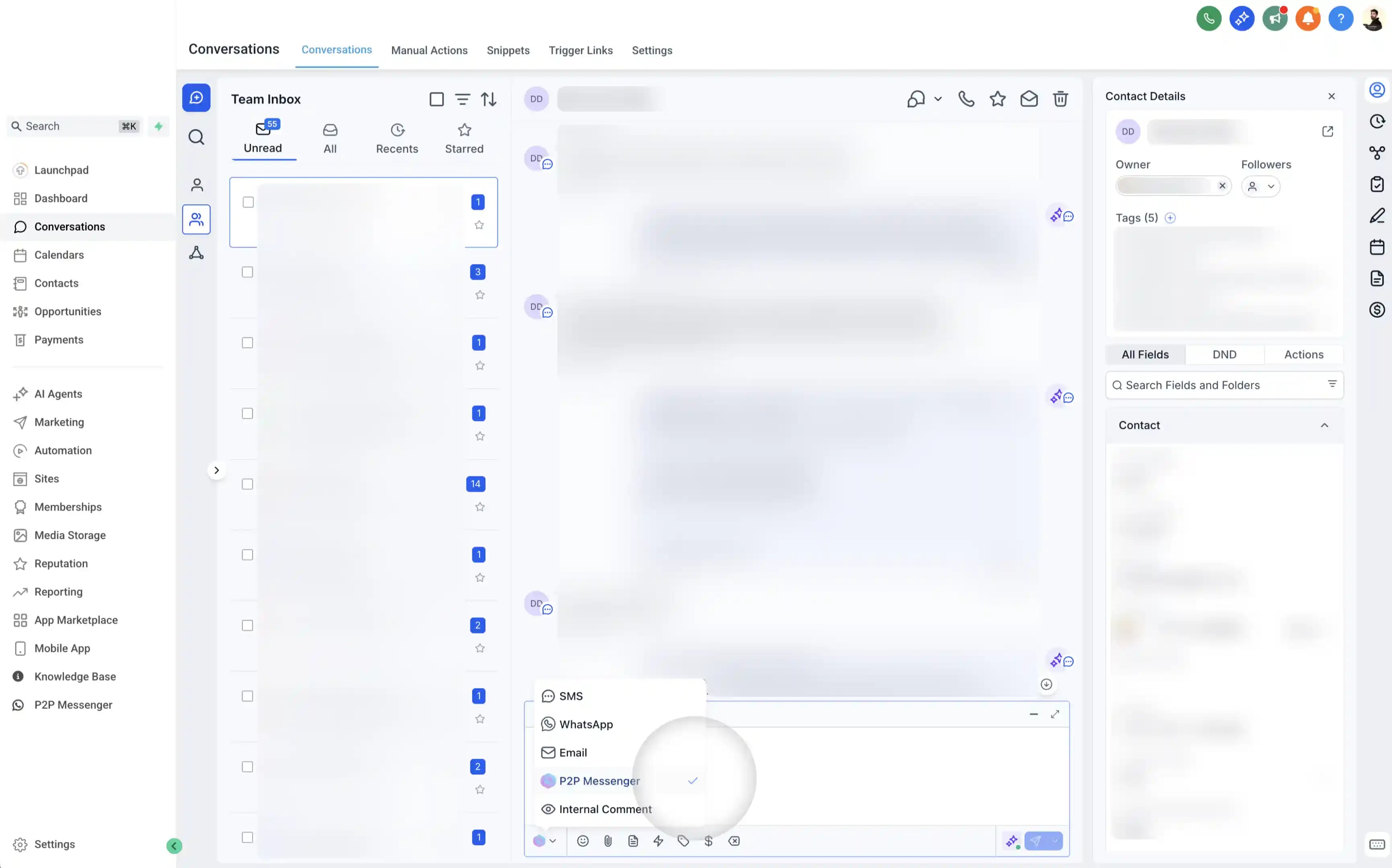
Keep LeadConnector as your default provider. Use the P2P Messenger tab in conversations to send messages manually.
| What Works | Limitation |
|---|---|
| Manual sending via the P2P Messenger channel | Native Send SMS and Wait for Reply keep using LeadConnector |
| Existing LeadConnector / Twilio automations | Workflow messages through WhatSnap need the Webhook action |
Choose this if you need to keep specific LeadConnector automations running for transactional alerts.
What Happens to My LeadConnector Numbers?
Switching the telephony provider does not remove your existing LC Phone numbers. It changes which messages go out through them.
| P2P Messenger is the provider | Side-by-side (LeadConnector stays) | |
|---|---|---|
| Inbound SMS to your LC Phone numbers | Still received in GHL conversations | Still received |
| Outbound from the SMS tab or native Send SMS | Sent through your WhatSnap Lines | Sent through LeadConnector |
| Outbound from your LC Phone numbers | No longer possible | Works as before |
| Sending through WhatSnap manually | SMS tab (default) | Pick the P2P Messenger channel in the conversation |
| Sending through WhatSnap from a workflow | Native Send SMS action | Webhook action |
| Voice calls | Unchanged (LeadConnector / Twilio) | Unchanged |
Once P2P Messenger is the provider, your old LC Phone numbers become receive-only. Every outbound SMS, including workflow messages and AI replies, leaves from a WhatSnap Line, so make sure at least one Line is connected and set as default before you switch.
The provider setting decides which messages reach WhatSnap, not how WhatSnap routes them. Once a message reaches WhatSnap, the contact's account tag, #switch commands and your default Line pick the device in either mode. See Understanding Line Switching.
How to Set P2P Messenger as Primary
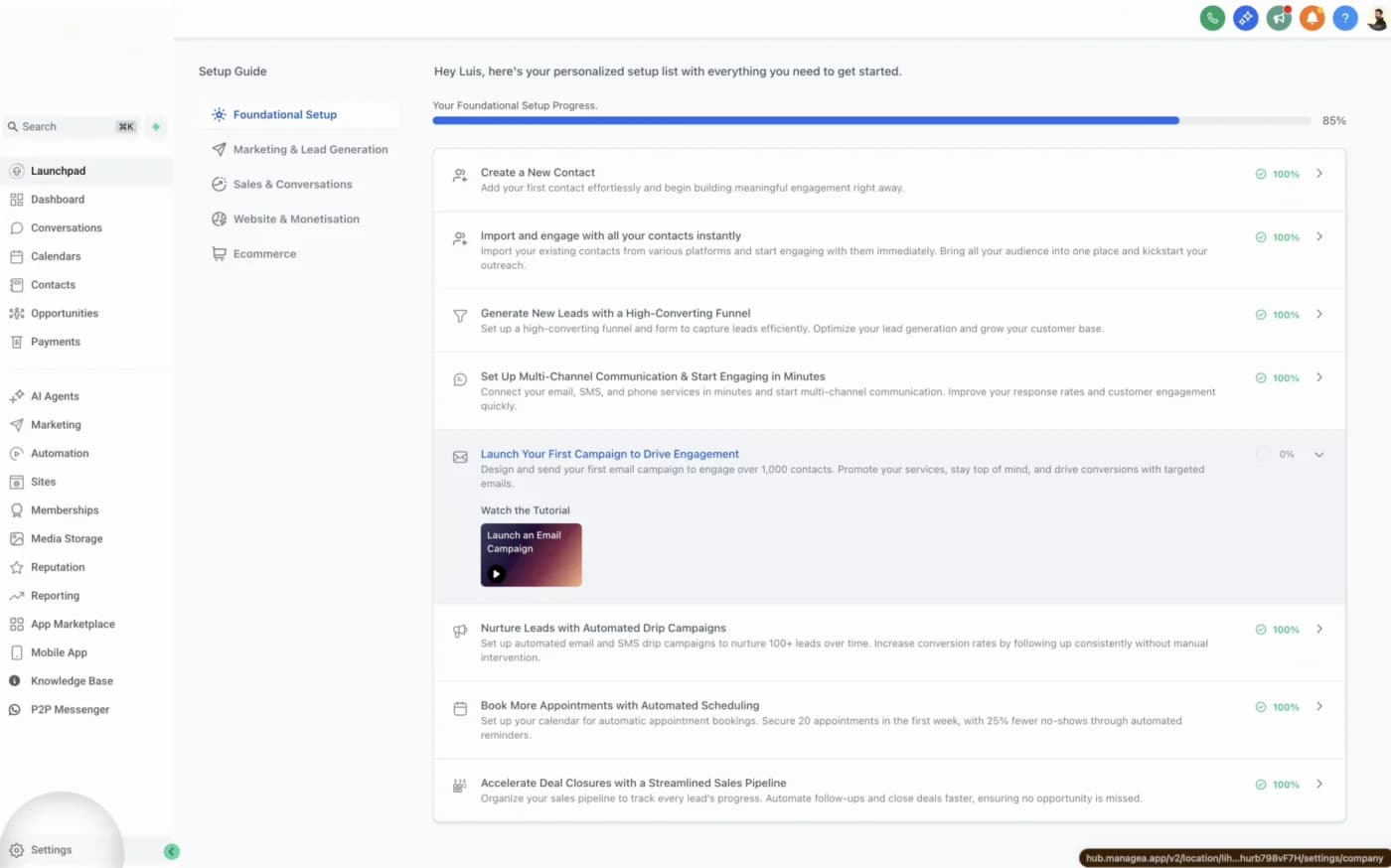
Open Subaccount Settings
Navigate to your GHL subaccount and click Settings at the bottom of the sidebar.
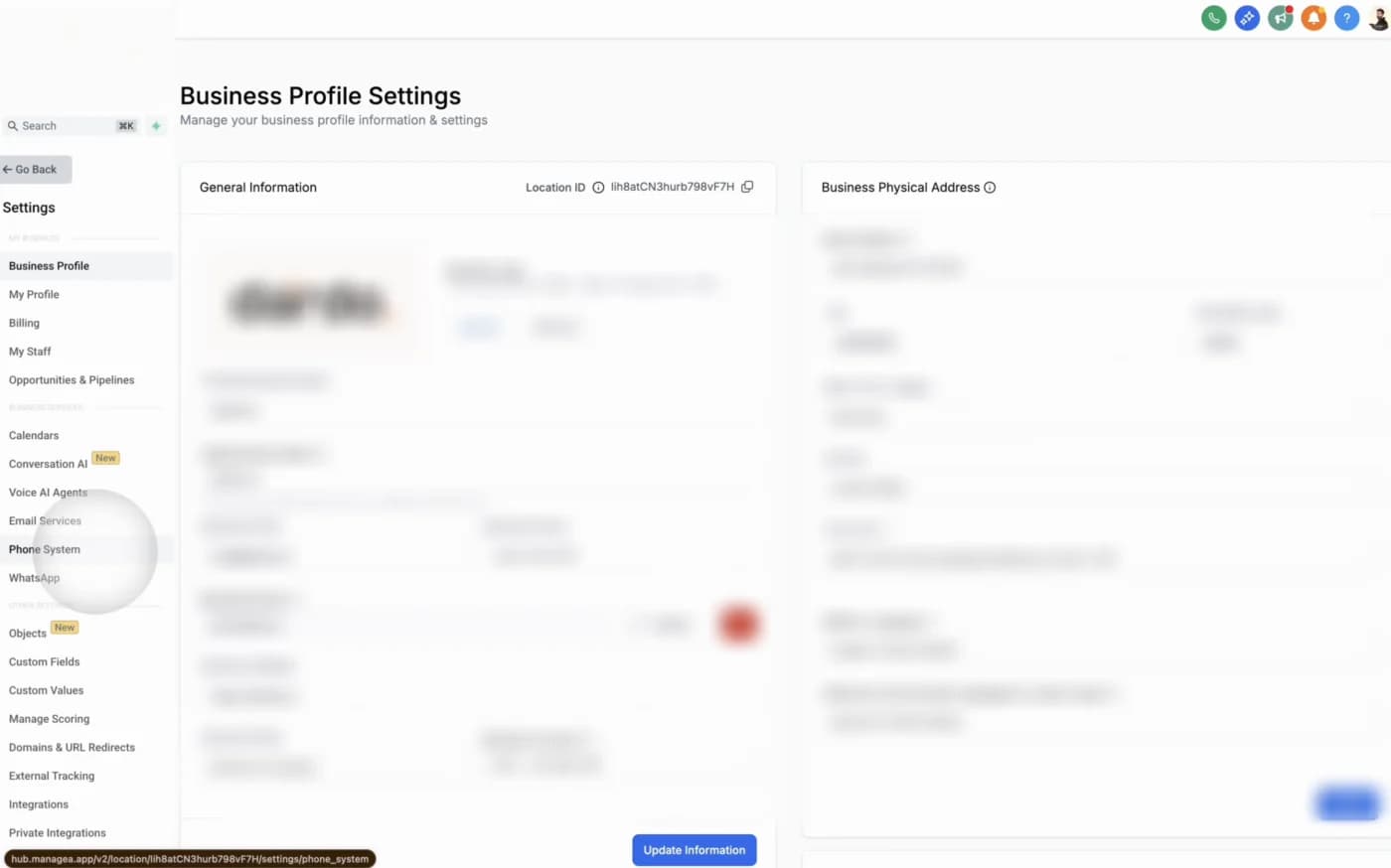
Go to Phone Systems
In the settings menu, click Phone Systems in the left-hand navigation.
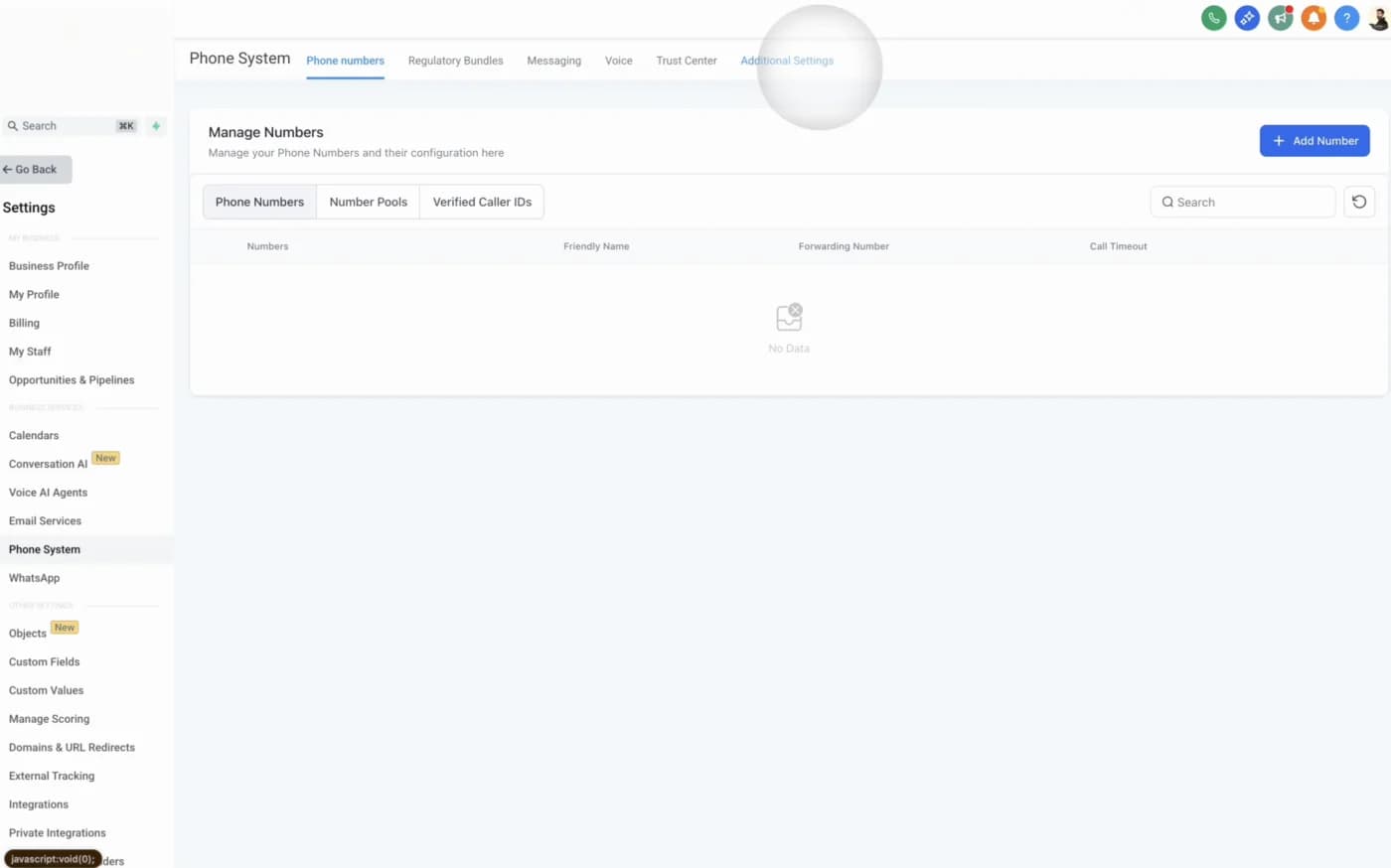
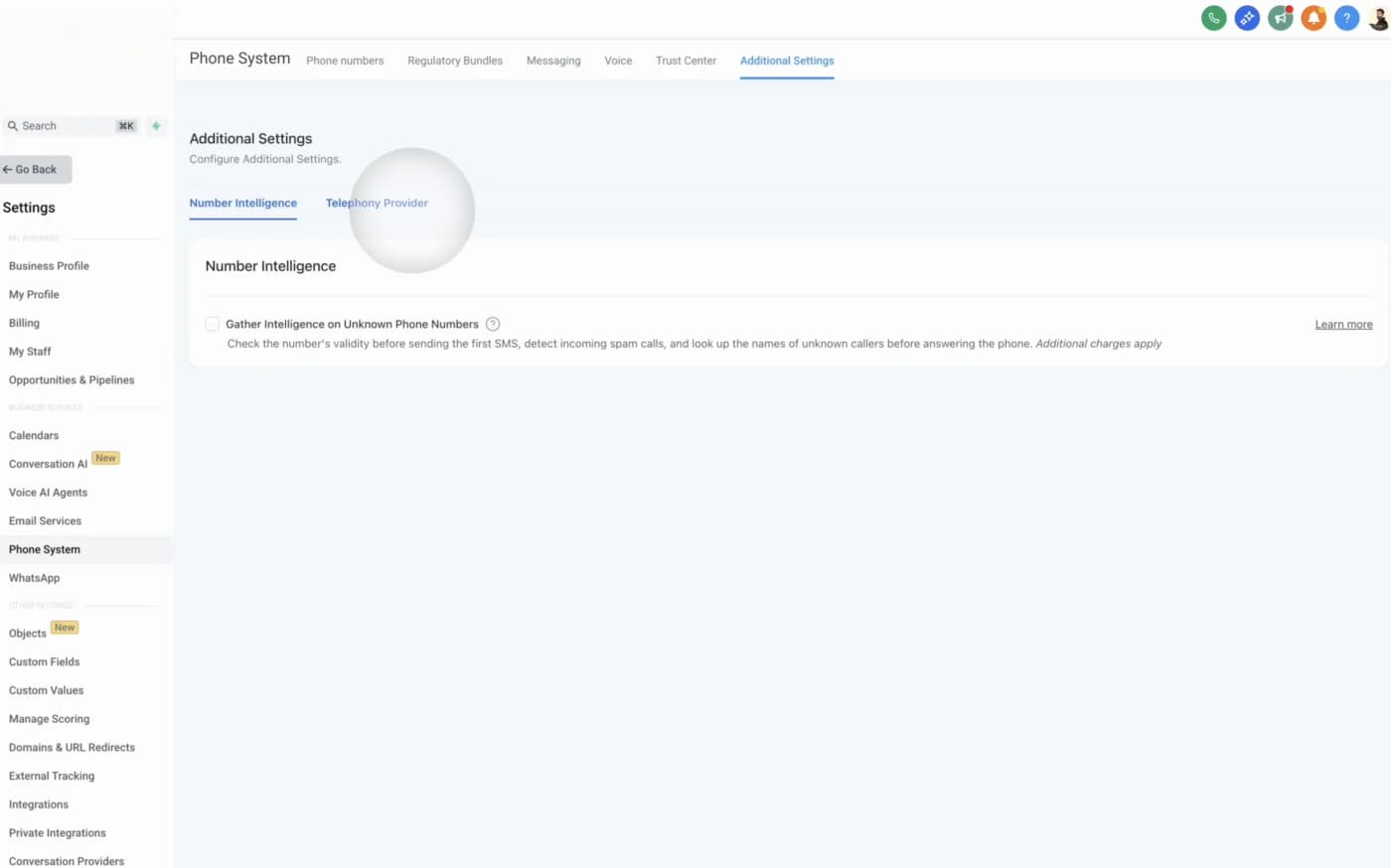
Open Additional Settings
Click the Additional Settings tab at the top of the Phone Systems page.
Find Telephony Provider
Locate the Telephony Provider section. You'll see your current provider (usually LeadConnector).
Select P2P Messenger
Click the dropdown, select P2P Messenger, and click Save.
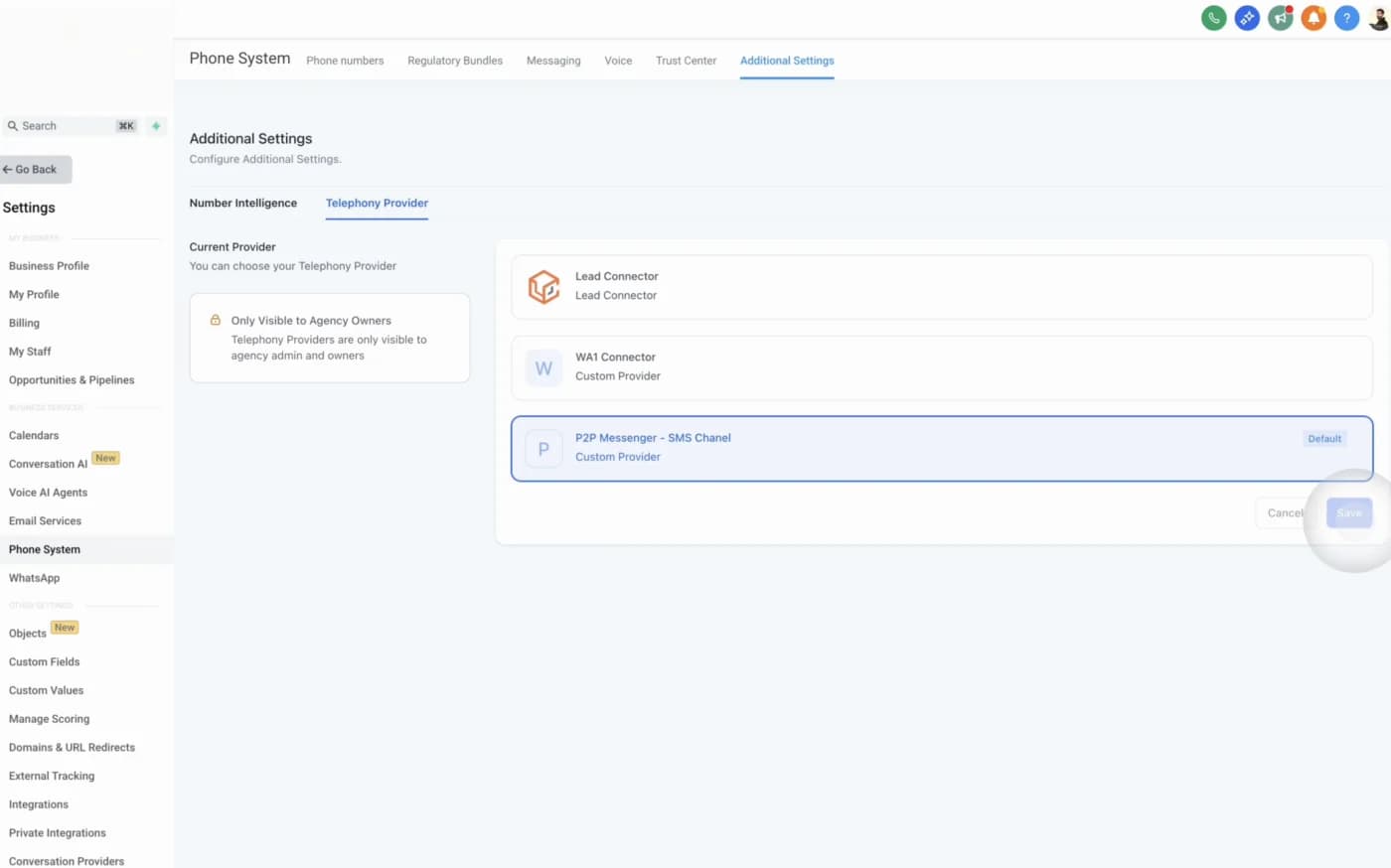
Provider active! Your GHL SMS channel now routes through your connected devices. All native automations work automatically. Your LC Phone numbers keep receiving replies, but no longer send.
Why "P2P Messenger"?
The interface shows P2P Messenger instead of WhatSnap to keep your setup 100% white-label. Your clients see a professional messaging provider with no third-party branding.
Next Steps
- Connect your first line — Choose a channel and connect a device
- Set up line routing — Control which device sends each message
Related
Last updated on October 15, 2026