

Connect a WhatsApp Line
Learn how to connect your WhatsApp account to GoHighLevel using WhatSnap's high-deliverability P2P bridge.
Overview
Connecting a WhatsApp line allows you to send and receive WhatsApp messages directly within GoHighLevel. Unlike the official WhatsApp API, WhatSnap uses a QR code connection, which means no template approvals, no per-message fees, and full freedom to message any contact.
- Active WhatSnap account
- Available line slot in your plan
- Mobile device with WhatsApp or WhatsApp Business installed
- Stable internet connection on your phone
Step-by-Step Connection Guide
Follow these steps to link your WhatsApp account to your sub-account.
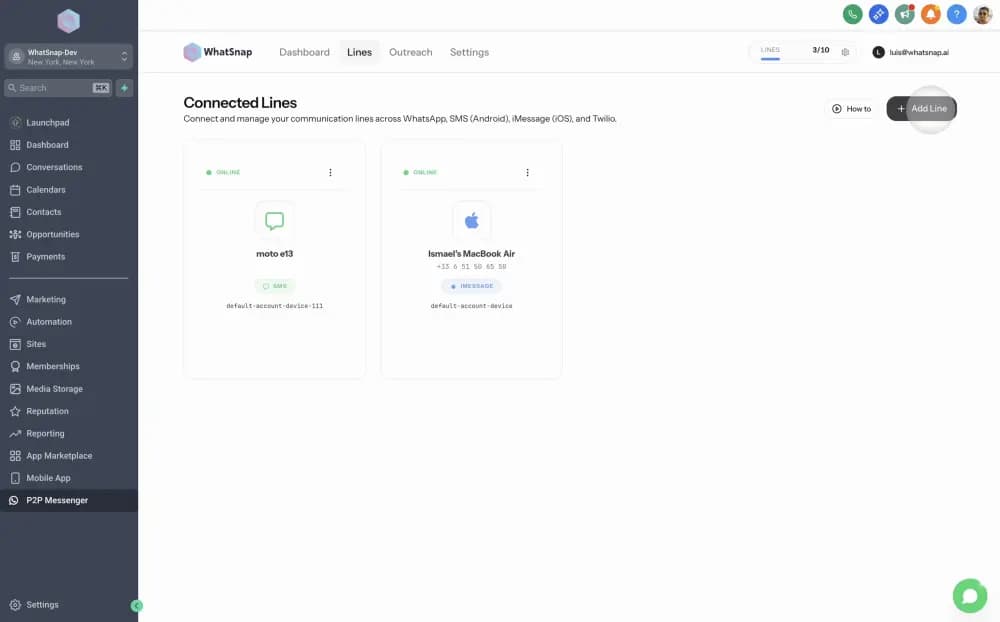
Access the Add Line trigger
Open your WhatSnap dashboard from the Agency View or directly within your sub-account. Click on Add Line to begin.
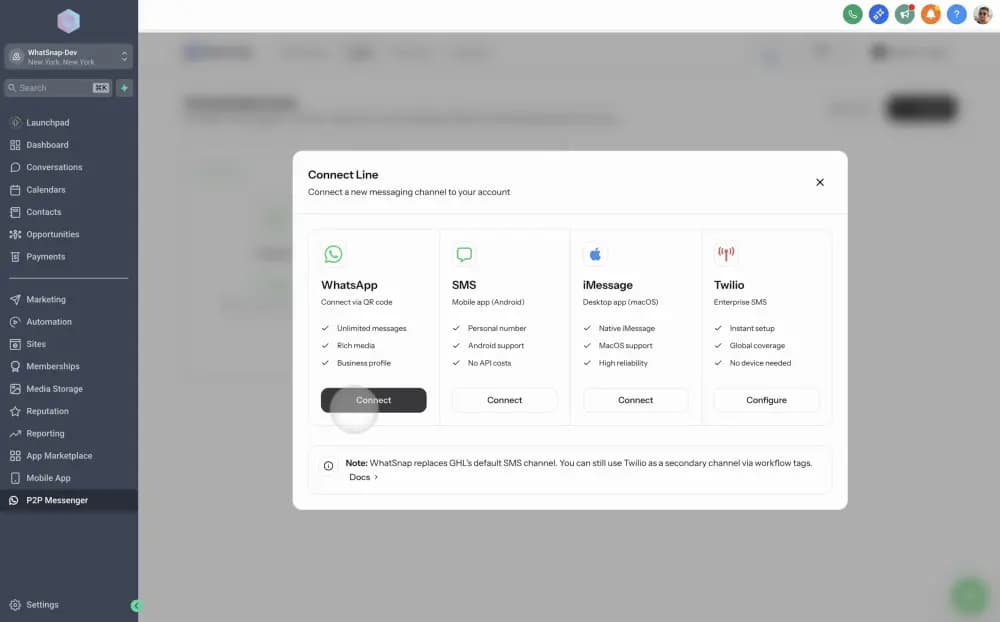
Select WhatsApp
In the connection modal, select WhatsApp as your messaging channel.
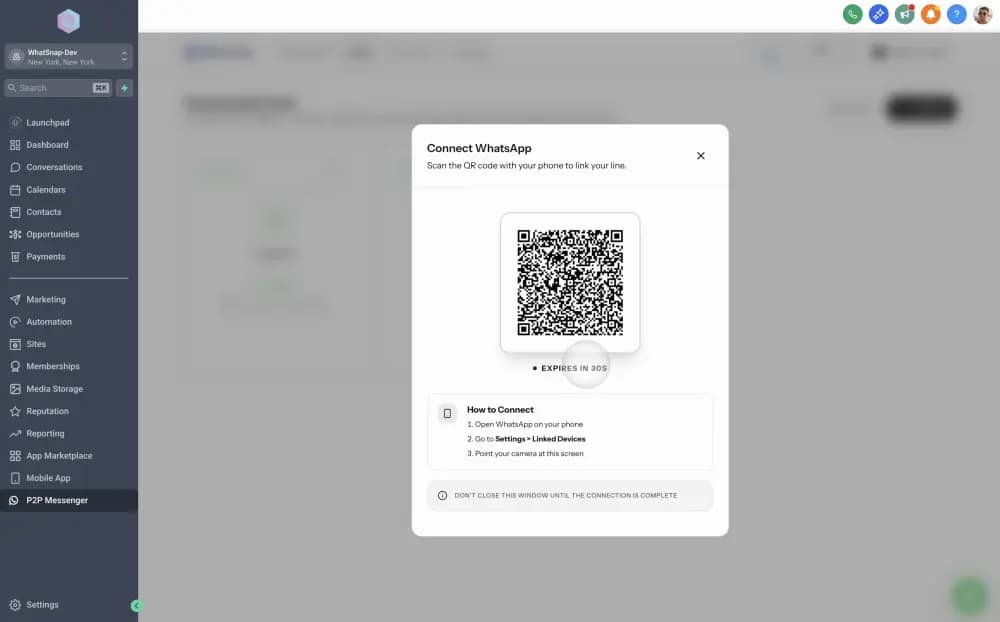
Scan the QR Code
The system will prepare a new session and display a unique QR code.
- Open WhatsApp on your phone.
- Go to Settings → Linked Devices.
- Tap Link a Device and scan the QR code displayed on your screen.
Connection Successful!
Once scanned, your phone will show "WhatSnap" as a linked device. The dashboard will automatically refresh to show your account as Connected.
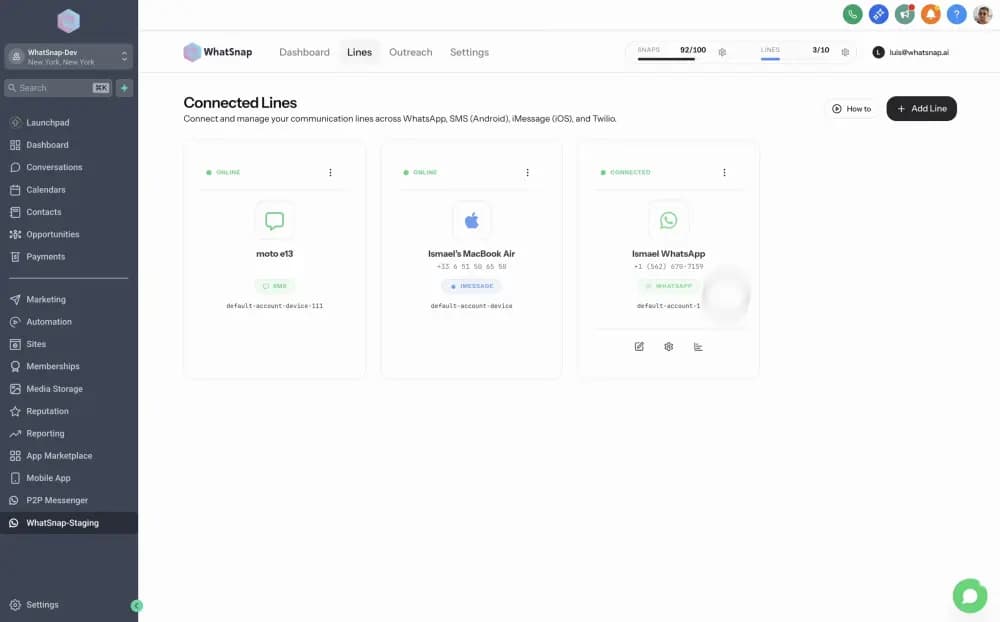
WhatsApp active! You have successfully bridged your account. Please note that this does not use the official API; it creates a mirror between your WhatsApp account and your GoHighLevel sub-account.
Best Practices
To ensure your WhatsApp account remains healthy and avoid being flagged:
- Use WhatsApp Business: We recommend the Business app for better resilience.
- Maintain Inbound Ratio: Encourage replies to build trust with WhatsApp's algorithms.
- Drip Your Outreach: Use Outreach drip mode for bulk messaging.
Related
Last updated on January 26, 2026