

Purchasing Additional Resources
Learn how to purchase extra line slots and subaccount seats as your agency scales.
Learn how to purchase extra line slots and subaccount seats as your agency scales — without upgrading your entire plan.
Overview
As your agency grows, you may need more capacity than your current plan includes. WhatSnap lets you purchase individual add-ons for extra subaccounts or lines instead of forcing you to upgrade to the next tier.
This gives you flexibility: pay only for what you need, when you need it.
What You Can Purchase
WhatSnap offers two types of add-ons:
| Add-on Type | What It Does | Pricing |
|---|---|---|
| Extra Subaccount | Adds one more subaccount slot to your plan | Varies by plan (see table below) |
| Extra Line | Adds one more line slot to your plan | Varies by plan (see table below) |
Add-on Pricing by Plan
Add-on costs decrease as you move to higher plan tiers:
| Plan | Extra Subaccount | Extra Line |
|---|---|---|
| Starter ($29/mo) | $29 | $15 |
| Growth ($97/mo) | $25 | $10 |
| Scale ($197/mo) | $20 | $6 |
| Agency ($397/mo) | $15 | $4 |
Higher-tier plans have cheaper per-unit add-on costs. If you're consistently buying add-ons, upgrading your plan may be more cost-effective.
When to Buy Add-ons vs Upgrade
Use this guide to decide:
Buy add-ons when:
- You need 1-3 extra subaccounts or lines
- Your current plan otherwise fits your needs
- You want to keep costs predictable
Upgrade your plan when:
- You need 5+ extra subaccounts or lines
- The next plan tier includes features you'll use
- The math favors upgrading (calculate total cost with add-ons vs next tier)
Use the Pricing Calculator to compare add-on costs vs upgrading. It shows your optimal plan based on total subaccounts and lines.
How to Purchase Extra Resources
Open Resource Management
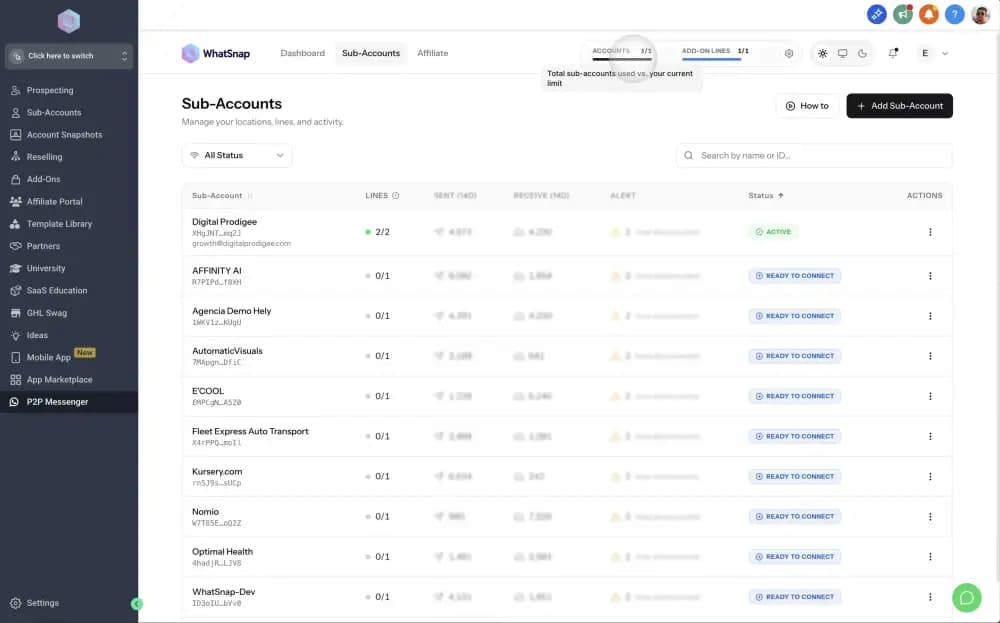
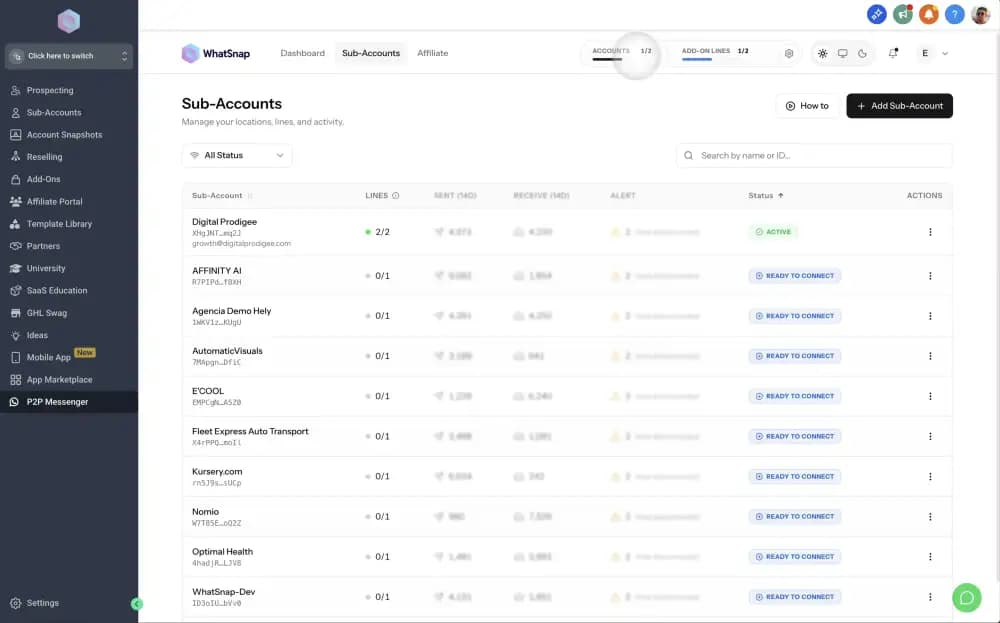
In the WhatSnap Manager, click the resource counter at the top of the dashboard (shows your current usage). Then click Manage Resources.
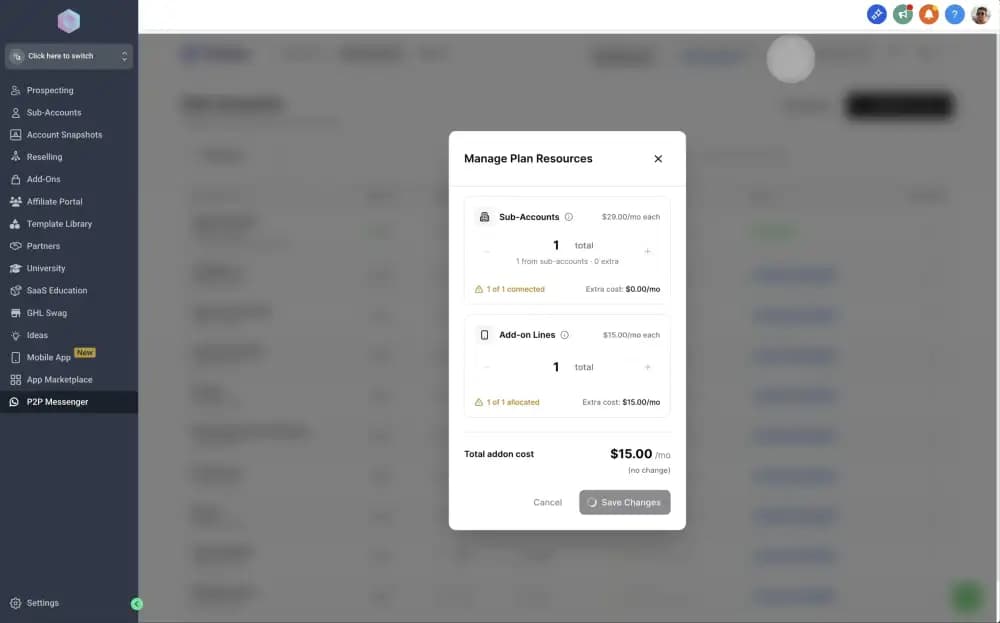
You can also access this from your user profile menu: User Menu → Manage Add-ons.
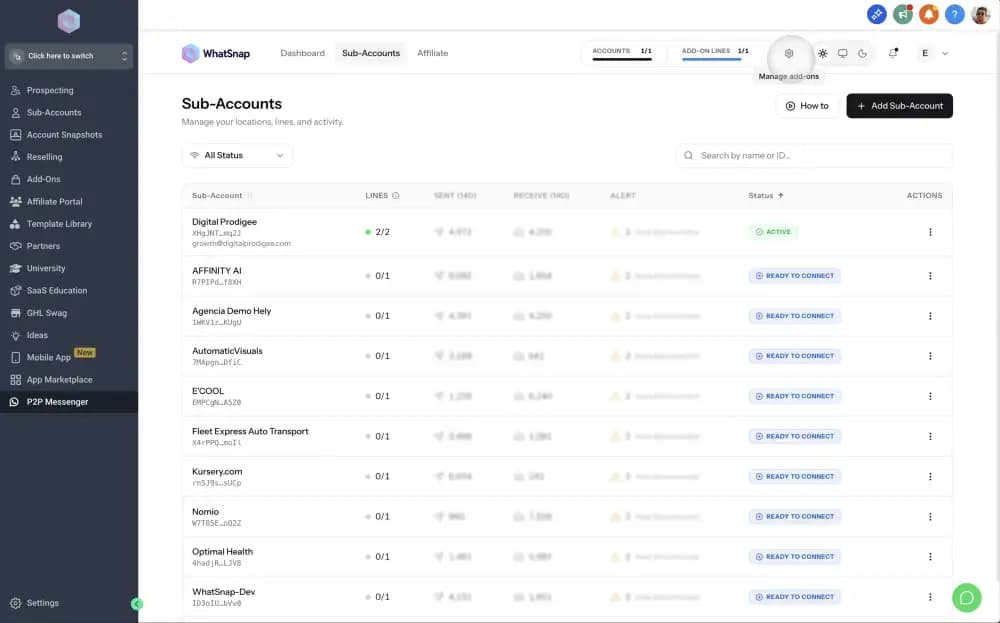
Select Add-ons
In the Manage Add-ons modal, choose which resources to purchase:
- Subaccounts: Enter how many extra subaccount slots you need
- Lines: Enter how many extra line slots you need
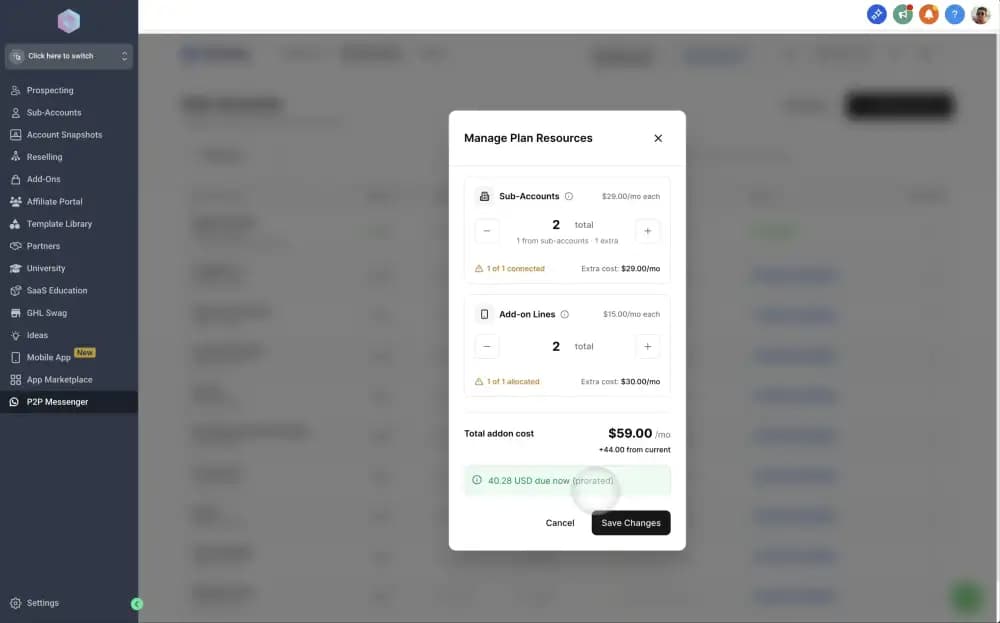
The interface shows:
- Your current plan's included capacity
- How many add-ons you already have
- The per-unit cost for your plan tier
- Total cost for the add-ons you're purchasing
Confirm and Purchase
Review the pricing breakdown and click Purchase Add-ons. The resources are added to your account immediately.
You'll see updated capacity in your dashboard.
Verify Your New Capacity
After purchasing add-ons:
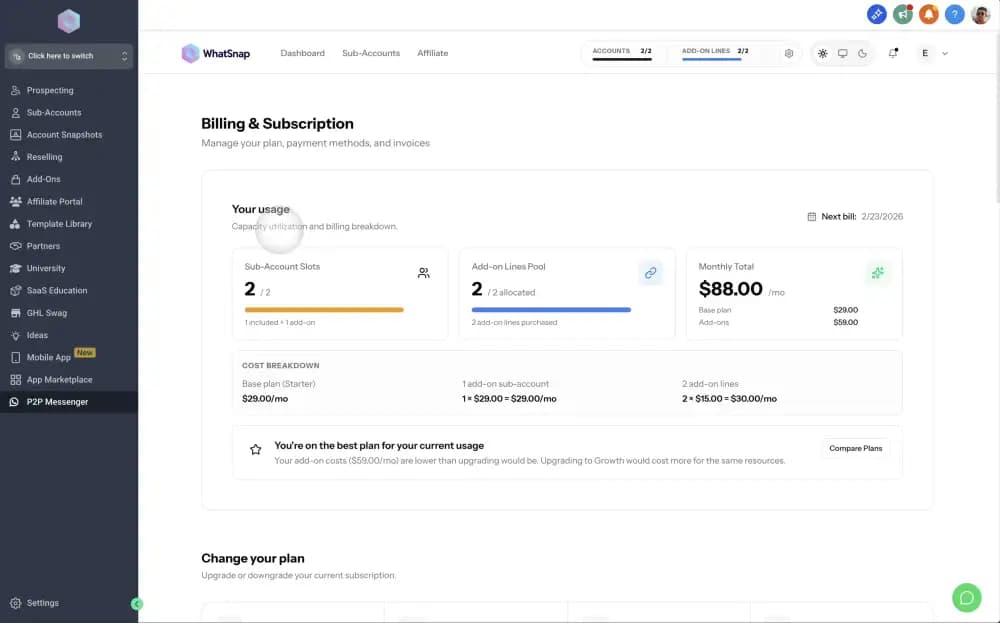
- Check the resource counter at the top of the dashboard — it should reflect the new limits
- Go to Billing → Usage Overview to see add-on details
- Your next invoice will include pro-rated charges for the current billing period
Add-ons are billed monthly or annually (matching your plan billing cycle). If you purchase mid-cycle, you'll see a pro-rated charge for the remaining days.
Managing Your Add-ons
View Current Add-ons
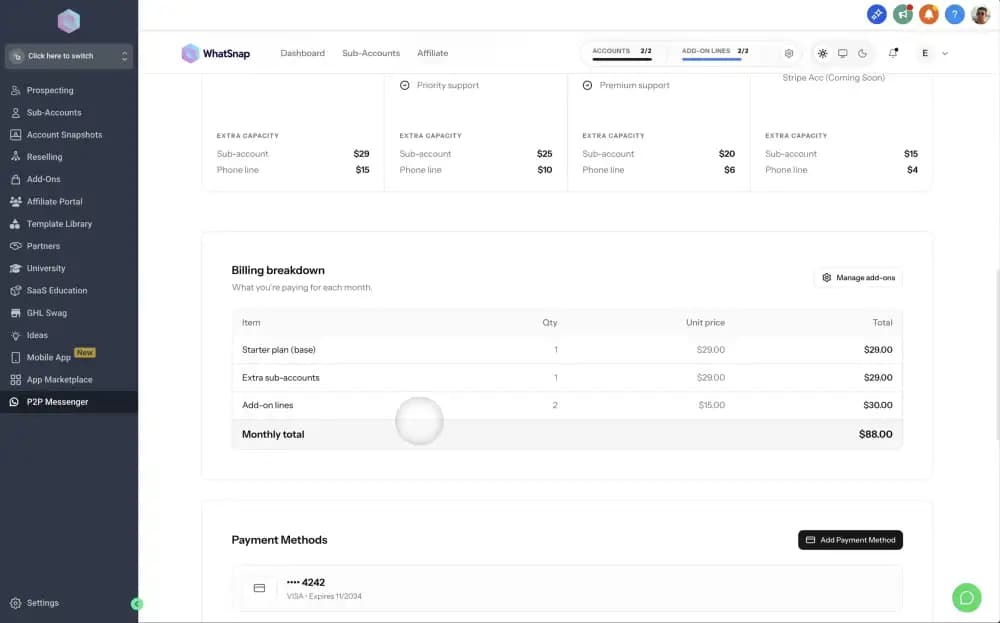
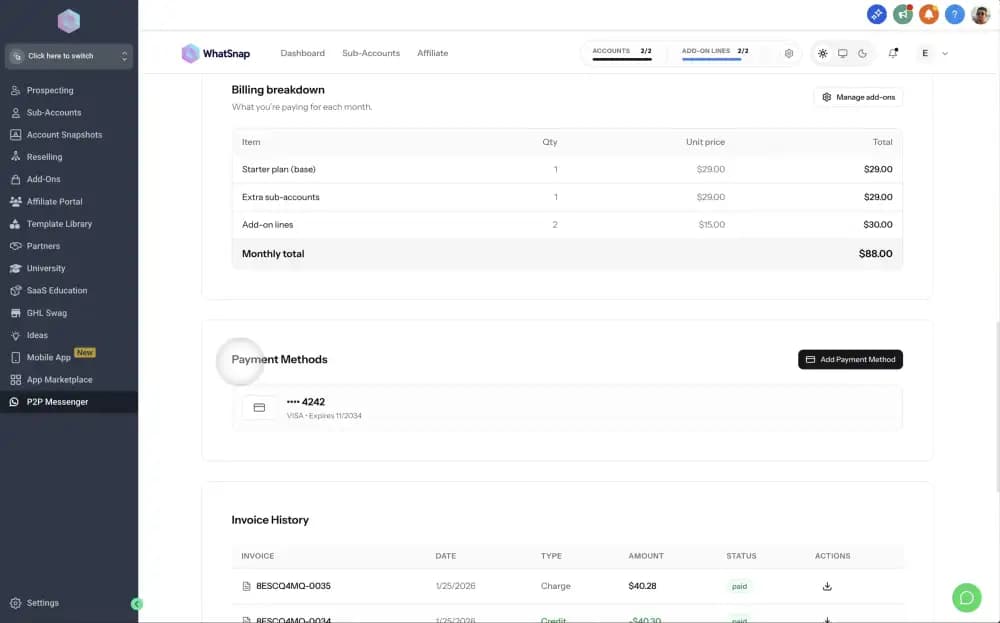
Go to Billing → Billing Breakdown to see:
- Your base plan cost
- Number of add-ons purchased
- Total add-on cost
- Next billing date
Remove Add-ons
You can reduce add-ons anytime:
- Go to Manage Add-ons
- Decrease the number of extra subaccounts or lines
- Confirm the change
If you're currently using resources you're trying to remove, you must first disconnect lines or disable subaccounts. WhatSnap won't let you drop below your active usage.
Monitor Usage
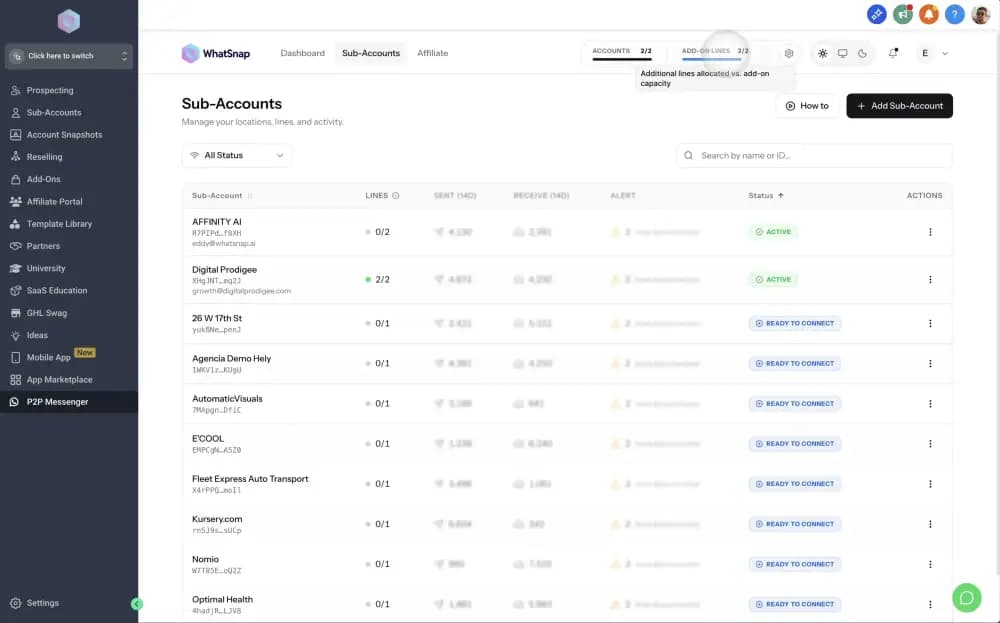
Track your usage to plan capacity needs:
- Lines: See active lines in the Lines panel
- Subaccounts: See enabled subaccounts in Agency View → Subaccounts
- Usage indicators: The dashboard shows usage bars for both resources
Upgrading Your Plan
If add-on costs become significant, consider upgrading to the next plan tier.
How to Upgrade
Review Plan Options
Go to User Menu → Change Plan or visit the Pricing Page.
Compare the included capacity and per-add-on costs for each plan.
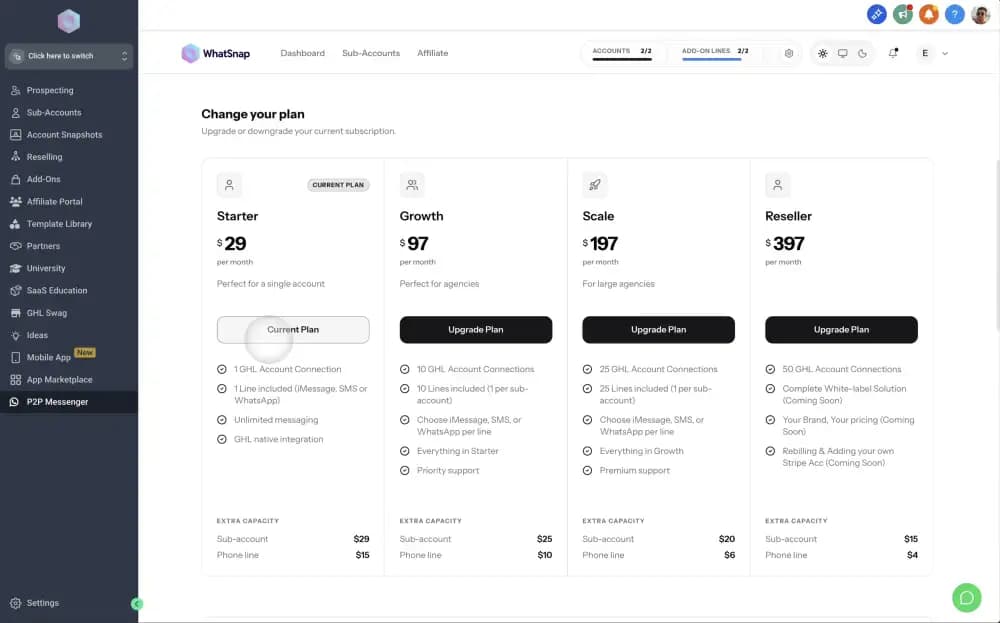
Select New Plan
Choose the plan that fits your needs and click Upgrade Plan.
You'll see:
- New plan price
- Included subaccounts and lines
- New add-on pricing (if you still need add-ons)
- Pro-rated credit for your current plan
Confirm Upgrade
Review the billing adjustment and confirm. Your plan upgrades immediately.
All existing add-ons remain active, but future add-ons use the new tier pricing.
When you upgrade, you get an immediate pro-rated credit for the unused portion of your old plan. The credit applies to your next invoice.
Billing and Invoices
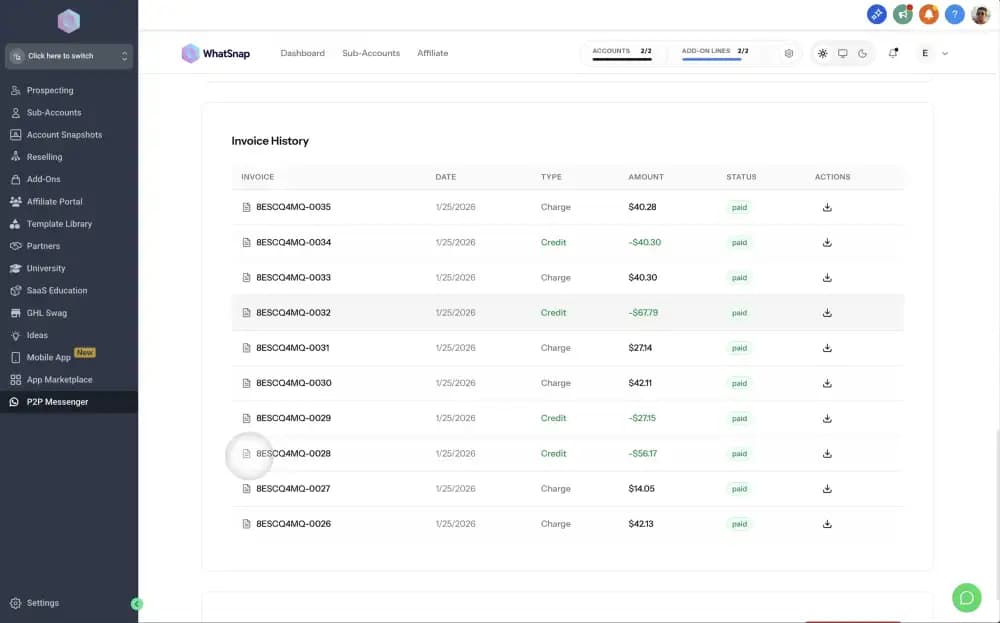
View Invoice History
Go to User Menu → Billing to access:
- Payment Methods: Manage credit cards
- Invoice History: Download past invoices
- Billing Overview: See current charges and next billing date
Payment Methods
Add or update payment methods in Billing → Payment Methods. WhatSnap supports:
- Credit cards (Visa, Mastercard, Amex)
- Debit cards
- ACH (for annual plans)
Annual Billing Discount
Switch to annual billing to save approximately 20%:
- Monthly Starter: $29/mo → $348/year
- Annual Starter: $278/year ($70 savings)
Annual billing applies to both base plans and add-ons.
Common Scenarios
Scenario 1: Seasonal Agency Growth
Your agency signs 5 new clients in Q4 but expects churn in Q1.
Solution: Purchase 5 extra subaccount add-ons for Q4. Remove them in Q1 when clients churn. This avoids over-committing to a higher plan tier.
Scenario 2: Multi-Line Client
One client needs 10 lines (sales team with individual phones).
Solution: If you're on Growth ($10/line add-on), purchasing 10 lines costs $100/mo. If you upgrade to Scale ($197 base + $6/line add-on), 10 lines cost $60/mo in add-ons — but the base plan increases by $100. Do the math for your full account.
Scenario 3: Testing New Services
You want to test offering iMessage lines to 2 clients before committing.
Solution: Purchase 2 extra subaccount add-ons and 4 extra line add-ons (2 lines per client). Run the pilot. If it works, upgrade your plan. If not, remove the add-ons.
Troubleshooting
"You've reached your limit" error
Cause: You're trying to enable a subaccount or connect a line, but you've hit your plan capacity.
Solution: Purchase add-ons or upgrade your plan before enabling more resources.
Add-on purchase failed
Cause: Payment method issue (expired card, insufficient funds).
Solution: Update your payment method in Billing → Payment Methods and try again.
Can't remove add-ons
Cause: You're currently using the resources you're trying to remove.
Solution: Disconnect lines or disable subaccounts first, then remove the add-ons.
For billing questions or account-specific guidance, contact WhatSnap Support.
Scaling Guidelines
- Monitor usage regularly — Check your resource counter weekly to avoid hitting limits unexpectedly
- Plan for growth — Purchase add-ons before you need them (e.g., before onboarding a new client)
- Review quarterly — Every 3 months, compare your add-on costs to the next plan tier
- Use annual billing — Save 20% if your usage is stable and predictable
- Track per-client costs — Know how much each subaccount costs you (base plan + add-ons ÷ total subaccounts)
Related
Last updated on February 8, 2026