

Send Messages with Webhooks
Use GHL webhook actions to send messages through WhatSnap while keeping LeadConnector as your telephony provider.
If you're keeping LeadConnector as your default telephony provider but want specific workflows to send through WhatSnap, use GHL's Webhook action. In this side-by-side setup your LC Phone numbers keep sending and receiving as before; native Send SMS actions keep going through LeadConnector, and only the webhook steps go out through your WhatSnap Lines. See Set Up Your Telephony Provider for the full comparison.
- At least one connected line
- Basic understanding of GHL Workflows
When to Use Webhooks
| Scenario | Recommended Approach |
|---|---|
| WhatSnap is your only provider | Use native Send SMS actions with line switching |
| LeadConnector is default, WhatSnap for specific workflows | Use webhooks (this guide) |
| You need iMessage effects or voice messages | Use webhooks with iMessage features |
Webhook Endpoint
Use this URL in GHL's Webhook action:
https://webhook.p2p-messenger.com/webhook/workflow/send-message/{{contact.id}}The {{contact.id}} merge field is automatically populated by GoHighLevel with each contact's unique ID at send time.
The fastest way to set this up: copy the pre-configured webhook action from your WhatSnap settings and paste it into your GHL workflow — the URL and required defaults come along automatically.
Advanced: replace {{contact.id}} with a hardcoded contact ID to always send through the same contact — useful for system notifications, admin alerts, or any flow where the recipient is fixed.
Setting Up a Webhook Action
Add a Webhook action
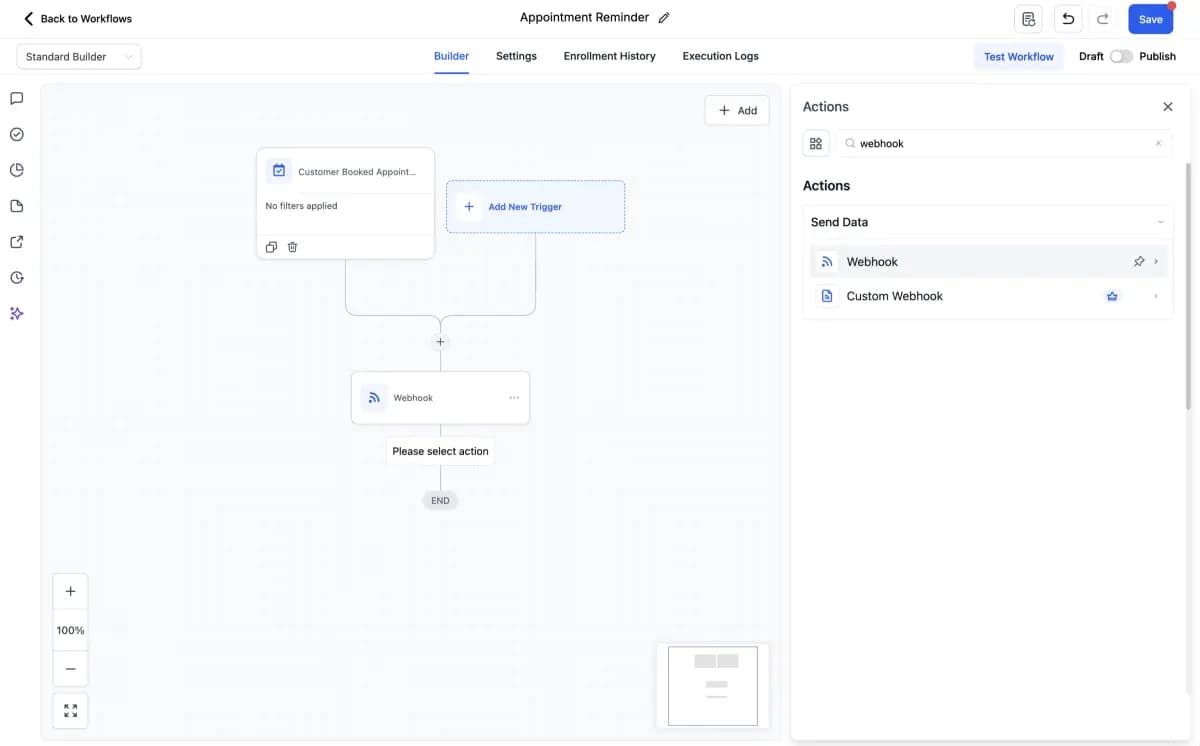
In your workflow, click Add Action and search for Webhook. You'll find it under the Send Data category. Select Webhook to add it to your workflow.
Configure the request
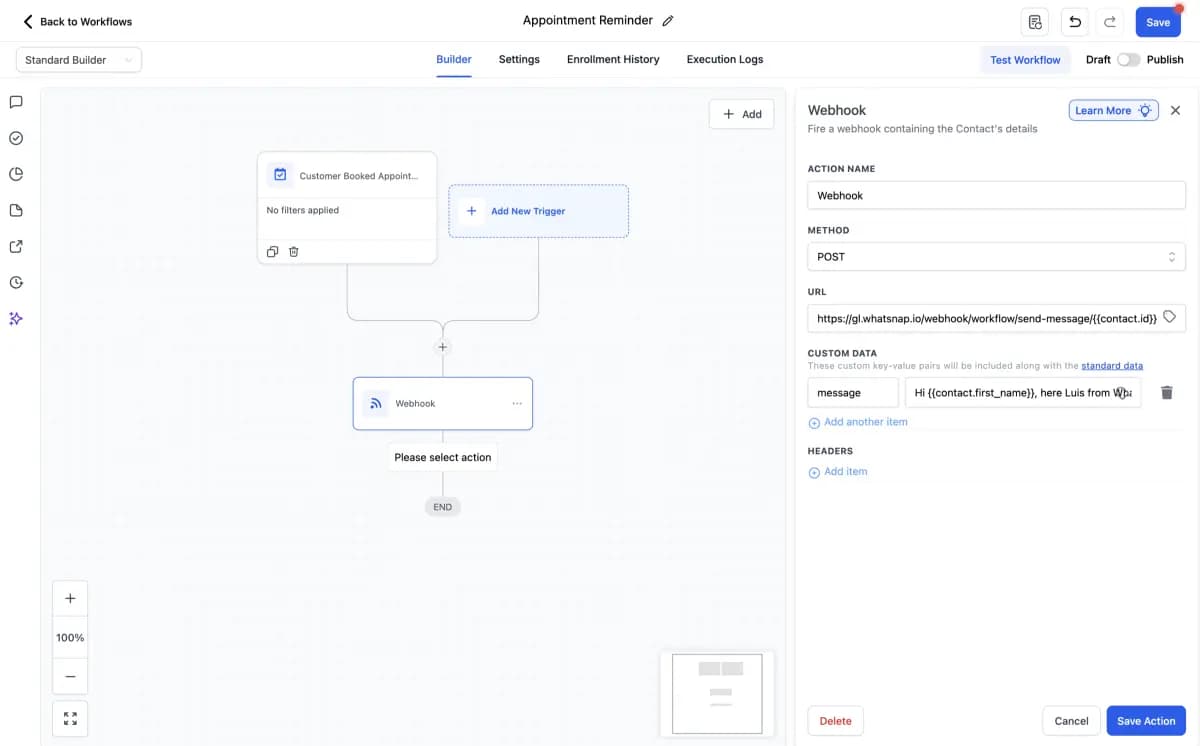
In the webhook configuration panel, set:
- Action Name: Give it a descriptive name (e.g., "WhatSnap Message")
- Method: Select POST
- URL: Paste the webhook endpoint above
Add the message parameter
In the Custom Data section, add a key/value pair with message as the key and your message text as the value. This field accepts GHL custom values like {{contact.first_name}}, so you can personalize every message.
Test with a single contact
Click Save Action, then run the workflow on a test contact to verify delivery before going live.
Available Parameters
Add these keys in the Custom Data section of the webhook body:
| Key | Required | Description | Example Value |
|---|---|---|---|
message | One of three* | The message text (supports GHL custom values) | Hi {{contact.first_name}}! |
voiceMessageUrl | One of three* | URL to an audio file | https://storage.googleapis.com/.../greeting.mp3 |
attachments | One of three* | One or more image/media URLs (comma-separated for multiple) | https://your-cdn.com/photo.jpg |
account | No | Route through a specific line — use the line tag value | p2p-account-sales |
effect | No | iMessage visual effect — see iMessage Media & Effects | confetti |
*At least one of message, voiceMessageUrl, or attachments is required.
Selecting a Specific Line
Add the account parameter to route the message through a specific connected device. Set the value to the tag name of the line you want to use (e.g., p2p-account-sales).
This is how you control which phone or device sends the message — useful when you have multiple lines for different team members or purposes.
How account interacts with tag-based routing:
- No
account: WhatSnap reads the contact'sp2p-account-*tag, and falls back to your default Line if there is none. accountset: it overrides the contact's tag for this message, and after sending, the contact's account tag is updated to this Line. It behaves like#switch, not like#switch_unique.- Unknown tag in
account: the message goes out through your default Line.
#switch and #switch_unique commands are not read in webhook messages. If you put one in the message field, the recipient will see it as text. Use account to pick the Line.
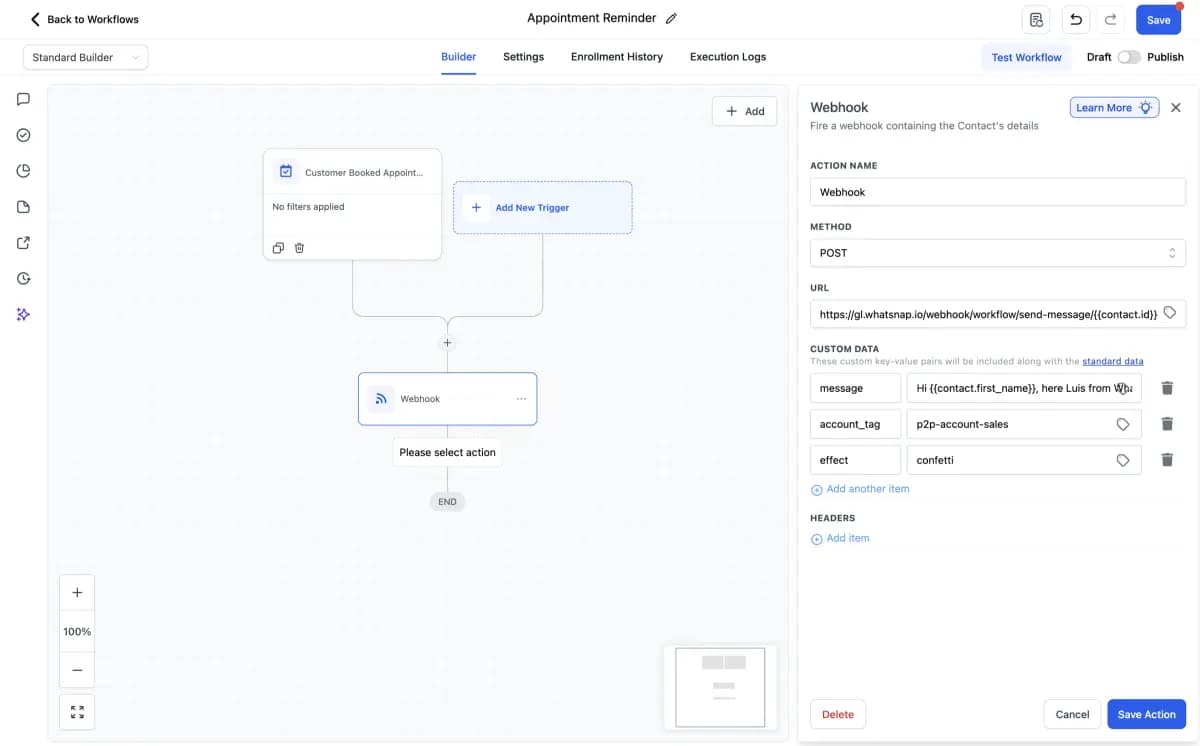
In the screenshot above, three custom data fields work together:
| Key | Value | Purpose |
|---|---|---|
message | The message text | What gets sent |
account | p2p-account-sales | Sends from the "sales" line |
effect | confetti | Adds a confetti animation (iMessage only) |
Find your line tags in WhatSnap Manager → Lines tab. Each connected device has a unique tag like p2p-account-[name]. Learn more in Understanding Line Switching.
Adding iMessage Effects
The effect parameter adds visual animations to your message — confetti, balloons, fireworks, lasers, love, celebration, spotlight, echo, slam, loud, gentle, and invisibleInk. This only works when the sending line is iMessage; on other channels, the effect is ignored and the message sends normally.
See iMessage Media & Effects for the full breakdown of bubble vs. screen effects and best practices for combining them with images and voice messages.
Sending Images and Media
Use the attachments parameter to send images, GIFs, or other media files. Pass either a single URL or multiple URLs separated by commas:
| Key | Value |
|---|---|
attachments | https://your-cdn.com/photo.jpg |
attachments | https://cdn.com/img1.jpg,https://cdn.com/img2.jpg |
On iMessage, attachments deliver as native media. On SMS, they convert to MMS where supported by the carrier. For dynamic per-contact images (certificates, QR codes), see iMessage Media & Effects.
You can combine attachments with message to send text and media together, or with account to route through a specific line.
Sending Voice Messages
Replace message with voiceMessageUrl to send an audio file instead of text. The recipient receives a native voice message with a playable waveform — it looks exactly like a voice note recorded on the phone.
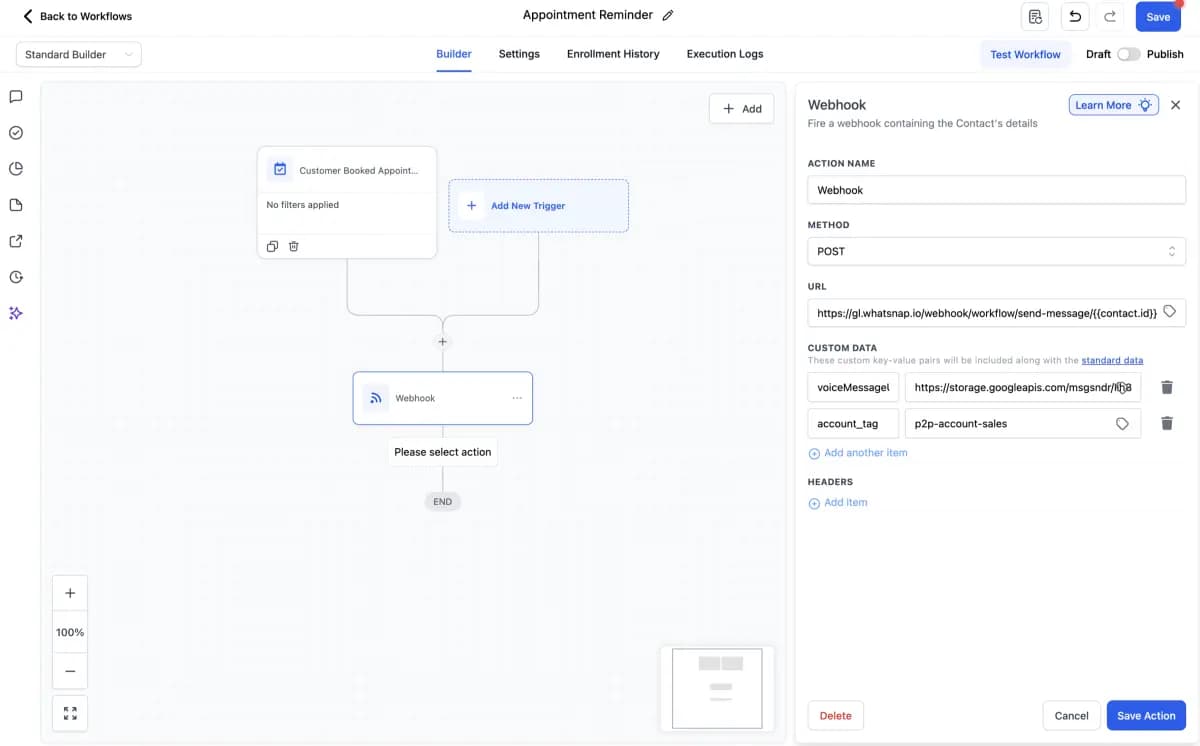
When using voiceMessageUrl, you don't need the message key — the audio replaces the text entirely. You can still combine it with account to choose which line sends it.
Upload your audio files to GHL's Media Library (or any public storage) and copy the URL. You can also use a GHL custom value here for advanced use cases — for example, dynamically selecting different audio greetings per contact.
Common Questions
Can I use webhooks and native actions in the same workflow?
Yes. You can mix LeadConnector's native actions with WhatSnap webhooks. Use webhooks for messages you want sent through your physical devices.
Do webhook messages appear in GHL conversations?
Yes. Messages sent via webhook sync back to the GHL conversation, and replies are captured automatically.
What if my line is disconnected when the webhook fires?
WhatSnap queues messages for up to 24 hours. If the line reconnects within that window, messages deliver. After 24 hours, they're marked as failed.
Can I send to WhatsApp via webhook?
Yes. WhatSnap automatically detects the recipient's capability and routes through the appropriate channel (iMessage, SMS, or WhatsApp).
Related
Last updated on October 15, 2026