

Connect an SMS Line (Android)
Learn how to connect your Android phone as a high-deliverability SMS line for your GoHighLevel sub-account.
Overview
Connecting an Android phone as an SMS line lets you send messages directly through your own cellular plan — P2P from your own number, with no per-message A2P provider fees. This results in significantly higher deliverability and trust.
- Active WhatSnap account
- Available line slot in your plan
- Android device (Android 9.0+)
- SIM card with an active SMS plan and cellular signal
Step-by-Step Connection Guide
Follow these steps to link your physical hardware to your sub-account.
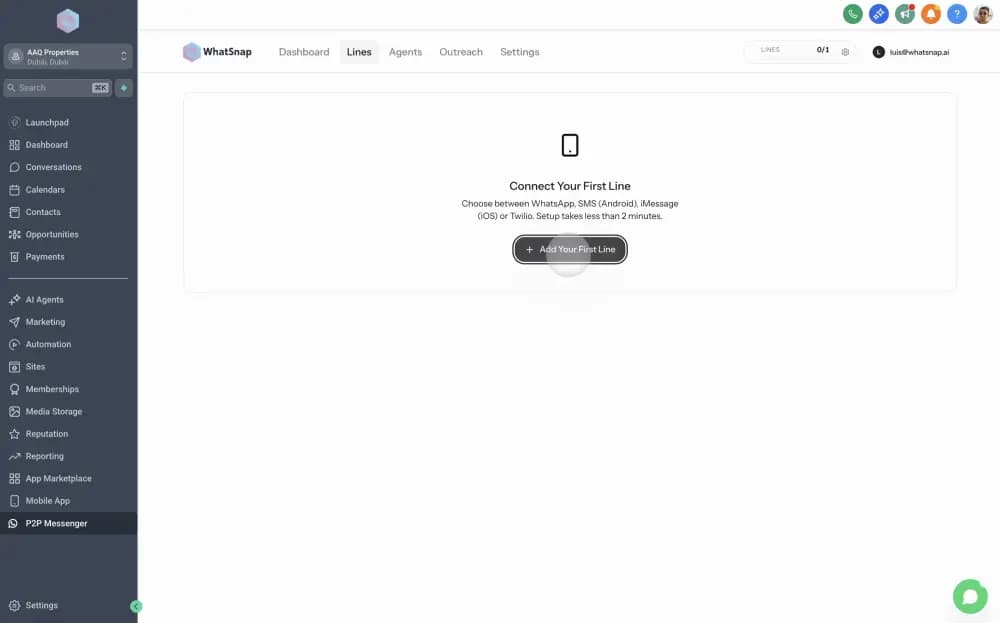
Access the Lines tab
You can initiate the connection from the Agency View by clicking the three dots over the sub-account and selecting Connect Line, or directly within the specific sub-account by navigating to the Lines menu at the top.
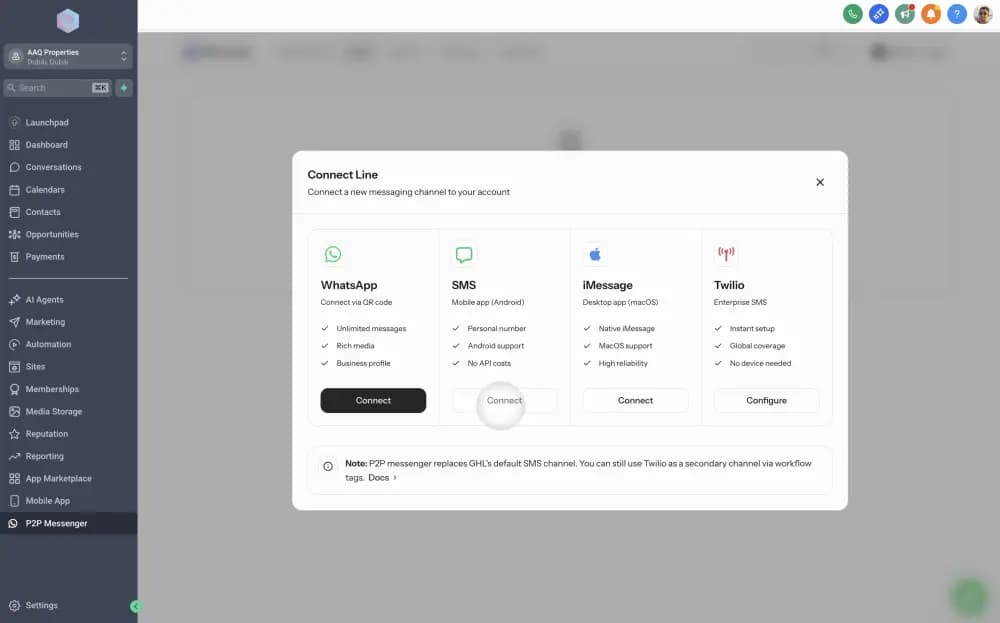
Select SMS channel
In the Connect Line modal, select SMS as your messaging channel.
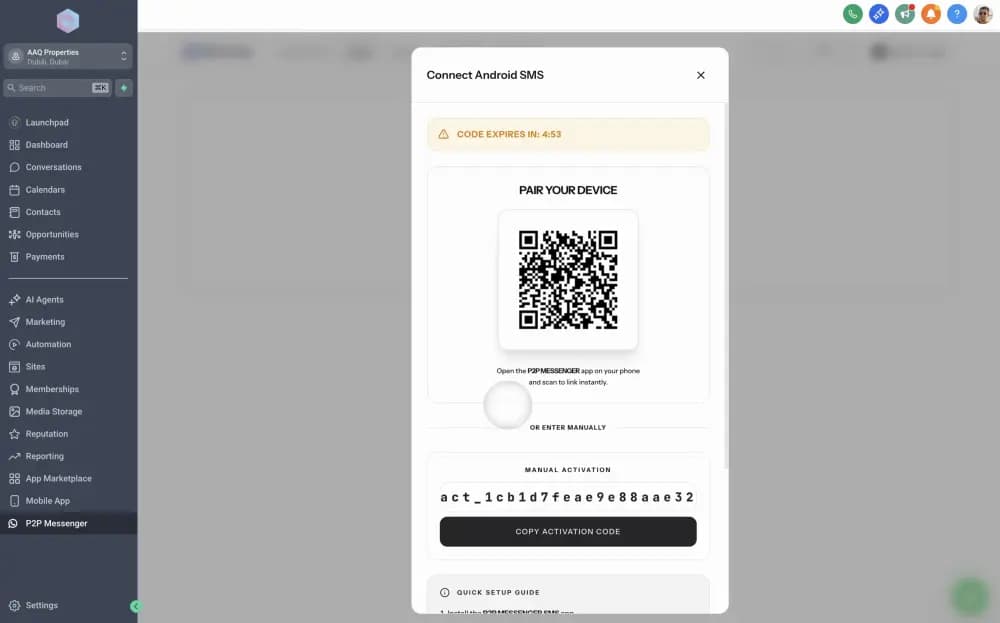
Prepare for linking
The Connect Android modal will appear. It contains a unique pairing QR code used to link your device once the application is installed. At this stage, you still need to download and set up the app on your Android phone.
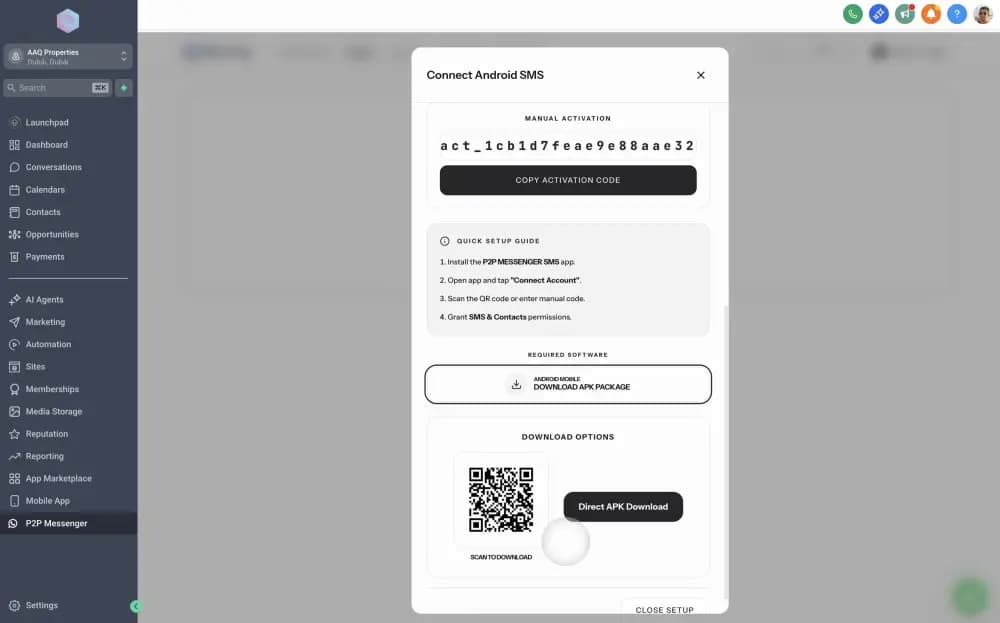
Download the Gateway App
Click Download APK package. You can either scan the download QR code displayed on the screen with your phone or download the file directly to your device.
Enable installation from Unknown Sources
Since the P2P Messenger Gateway is distributed directly as an APK file, you must authorize your phone to install it:
- Open the Google Play Store app.
- Tap your profile icon, select Play Protect, and then go to Settings (⚙️).
- Disable Scan apps with Play Protect to allow the installation.
- When opening the downloaded APK, if prompted, toggle Allow from this source in your system settings.
Authenticate your device
Open the P2P Messenger app on your Android phone. Scan the authentication QR code displayed in your WhatSnap dashboard or copy and paste the Activation Code.
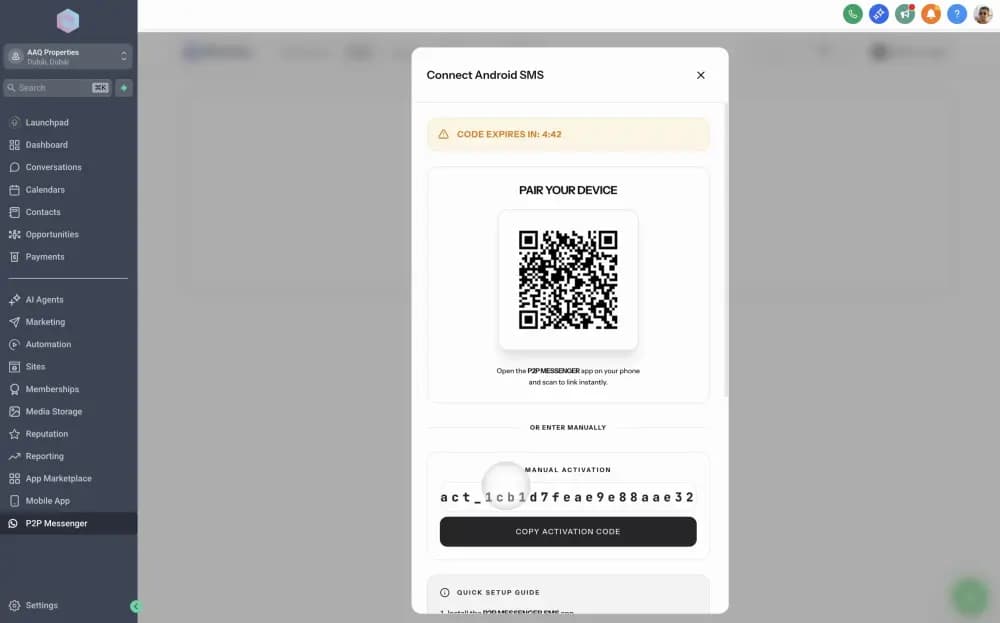
The authentication code is valid for 5 minutes. If the timer expires, close the modal and reopen it to generate a fresh code.
Verify connection
Once scanned, the status in your dashboard will refresh to Connected. Your device is now bridged to GoHighLevel and ready to send messages.
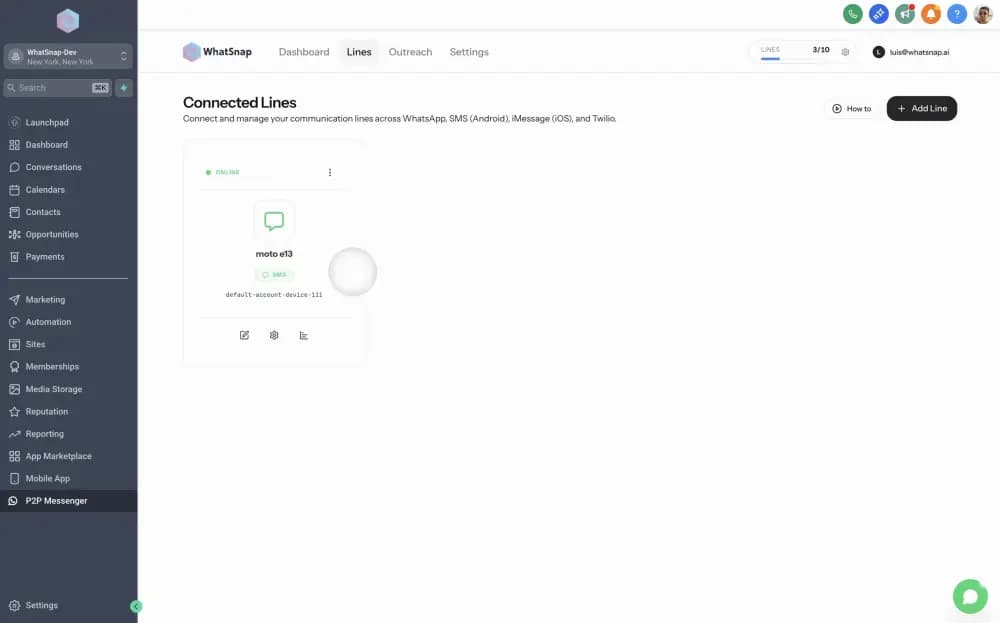
Line connected! Your device is now bridged to GoHighLevel. You can send and receive SMS directly from this line — no A2P/10DLC registration required for P2P lines.
Optimization & Best Practices
To ensure your bridge remains active 24/7, we recommend the following device settings:
- Battery Optimization: Set the WhatSnap app to Unrestricted in your phone's battery settings to prevent Android from killing the background process.
- Stay Awake: Configure the screen to stay on while charging or use Developer Options to ensure the device never enters deep sleep.
- Stable Power: Keep the phone connected to a reliable power source at all times.
Related
Last updated on January 26, 2026