

iMessage Media & Effects
Send images, voice messages, and visual effects through iMessage using attachments, custom fields, and webhooks.
iMessage supports rich media that SMS can't match — images, voice messages, and animated effects. Here's how to use each feature through WhatSnap.
- iMessage line connected (Mac + iPhone on same iCloud)
- Recipient must be on iMessage (Apple device with iMessage enabled)
Sending Images
Method 1: Attachments (Recommended)
Use GHL's native attachment feature in the Send SMS action:
Add Send SMS action
In your workflow, add Send SMS and write your message.
Click Add Attachment
Below the message field, click Add Attachment.
Select your image
Choose an image from your GHL Media Library or upload a new one.
Publish
The image sends alongside your text as a native iMessage attachment.
Attachments work with P2P Messenger as your telephony provider. No webhooks needed for basic image sending.
Method 2: Dynamic Images via Custom Fields
For personalized images (like certificates or QR codes), use a custom field with a URL:
Create a custom field
Go to Settings → Custom Fields → Create Field. Name it something like certificate_url.
Populate the field
Use a workflow action or integration to set the image URL for each contact.
Reference in Send SMS
In your message, include: {{contact.certificate_url}}
WhatSnap detects URLs ending in .jpg, .png, .webp, or .gif and sends them as image attachments.
Dynamic images are perfect for personalized content — certificate images, custom QR codes, or contact-specific graphics generated by external tools.
Sending Voice Messages
Voice messages appear as native iMessage audio with a playable waveform — more personal than text.
Requirements
- Format: MP3 recommended
- Hosting: Use GHL Media Library or any public URL
- Delivery: iMessage only (won't work on SMS)
Using Webhooks for Voice Messages
Voice messages require the webhook method:
| Key | Value |
|---|---|
voiceMessageUrl | https://your-ghl-file-url.com/greeting.mp3 |
Upload your audio
Go to Media → Files → Upload and add your MP3 file.
Copy the public URL
Click on the uploaded file and copy its URL.
Add webhook action
In your workflow, add a Webhook action with the voiceMessageUrl parameter.
The recipient hears your voice with full waveform visualization — identical to a voice message sent from the Messages app.
iMessage Effects
Add visual animations that play when the recipient opens your message.
Bubble Effects
These animate the message bubble itself:
| Effect Key | What It Does |
|---|---|
slam | Slams onto screen with impact |
loud | Grows large with shake effect |
gentle | Fades in softly |
invisibleInk | Hidden until recipient taps to reveal |
Screen Effects
These take over the entire screen:
| Effect Key | What It Does |
|---|---|
confetti | Colorful confetti shower |
balloons | Floating balloons rise up |
fireworks | Fireworks animation |
lasers | Laser light show |
love | Large heart animation |
celebration | Celebration animation |
spotlight | Spotlight highlights the message |
echo | Message copies fill the screen |
Using Effects in Webhooks
Effects require the webhook method. Add the effect key in the Custom Data section alongside your message:
| Key | Value |
|---|---|
message | Congratulations on your new home! |
effect | confetti |
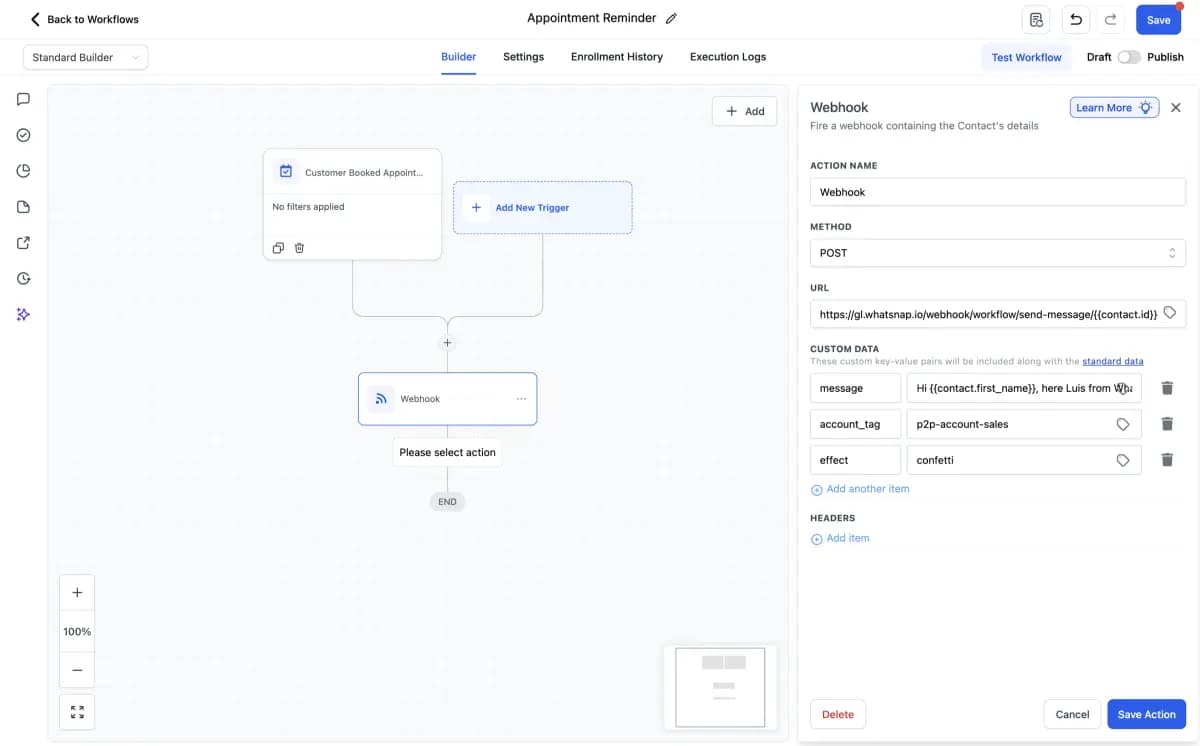
In this example, three parameters work together: message for the text, account to route through a specific line, and effect set to confetti for the animation.
Effects only work for iMessage recipients. If the message is delivered via SMS, the effect is silently ignored and the text sends normally.
Best Use Cases for Effects
| Message Type | Recommended Effect |
|---|---|
| Celebration/win | confetti, celebration, balloons |
| Big announcement | fireworks, spotlight |
| Personal thank you | love, gentle |
| Secret/surprise | invisibleInk |
| Urgent/important | slam, loud |
Combining Features
You can combine media and effects in a single webhook:
| Key | Value |
|---|---|
message | Your personalized certificate is ready! |
effect | celebration |
Or send a voice message with line selection:
| Key | Value |
|---|---|
voiceMessageUrl | https://your-url.com/welcome.mp3 |
account | p2p-account-ceo |
Fallback Behavior
When the recipient isn't on iMessage:
| Feature | Fallback |
|---|---|
| Images via attachment | Sends as MMS (if supported) |
| Images via URL | Sends as text link |
| Voice messages | Not delivered — consider SMS fallback |
| Effects | Ignored — text sends normally |
Voice messages and effects are iMessage-only. For recipients on Android or without iMessage, build a conditional workflow that sends a text alternative.
Conditional Workflow Example
Use GHL's If/Else to handle both iMessage and non-iMessage recipients:
Add condition
Check if the contact has an Apple device or iMessage capability (via custom field or tag).
iMessage branch
Send the voice message or effect via webhook.
SMS branch
Send a text-only version of your message.
This ensures every recipient gets an appropriate message format.
Related
Last updated on May 8, 2026