

Allocating Lines and Subaccounts
Learn how to activate subaccounts and allocate lines to manage your messaging resources efficiently.
Activate subaccounts, allocate lines, and move resources between clients — all from the Agency View dashboard.
- Active WhatSnap subscription
- WhatSnap installed at agency level
- Access to Agency View in GHL
Understanding Resource Types
WhatSnap manages two types of resources:
Subaccount Licenses: Each license activates WhatSnap for one GHL subaccount. Your plan determines how many licenses you have available.
Lines: Connected messaging devices (iMessage, SMS, WhatsApp, or Twilio). Each activated subaccount gets one free line. Additional lines can be purchased separately.
When you activate a subaccount, it automatically gets one line included. You only need to purchase additional lines if you want to connect multiple devices to the same subaccount.
Checking Resource Usage
The Agency View dashboard gives you a real-time overview of your resource allocation. Hover over the resource indicators in the navigation bar to see your current usage at a glance:
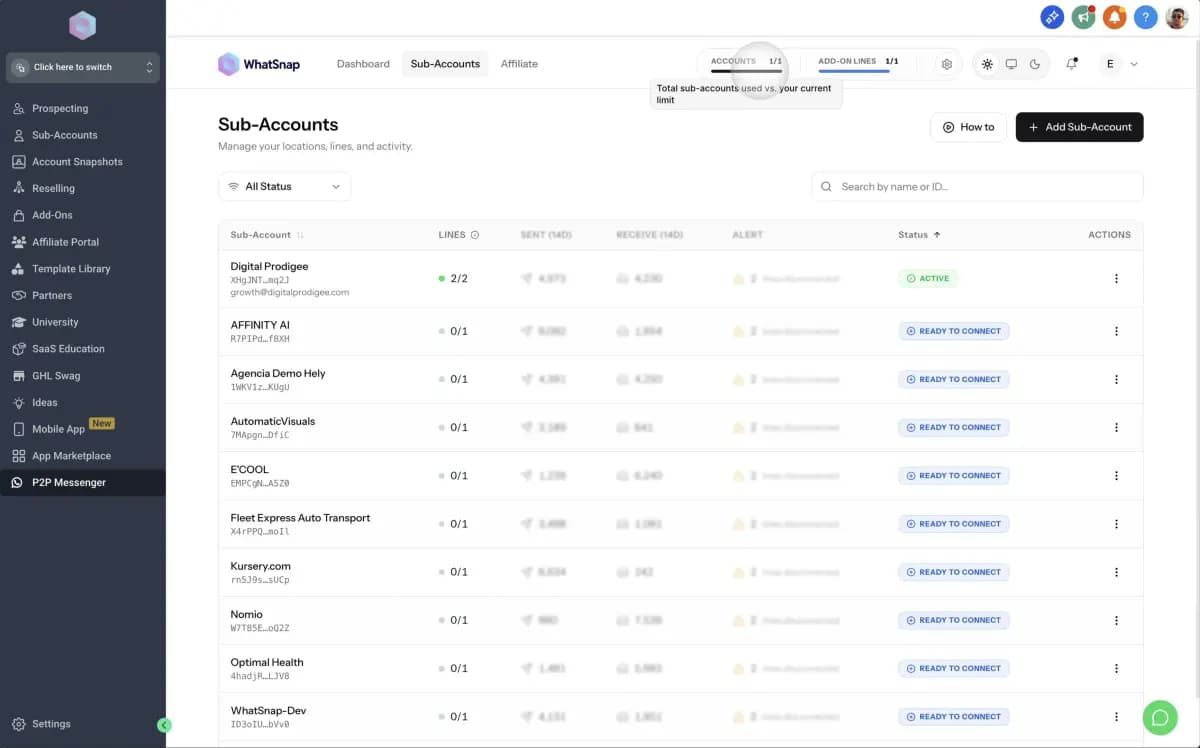
| Metric | What It Shows |
|---|---|
| Total licenses | How many subaccounts you can activate |
| Active subaccounts | Licenses currently in use |
| Total lines | Your line inventory across all types |
| Allocated lines | Lines currently assigned to subaccounts |
For each subaccount, you can see its status (active or inactive), available lines (allocated but not connected), connected lines (actively sending), and a breakdown by channel type.
Purchasing More Resources
Need more subaccounts or lines? Click Manage Resources to open the plan management modal:
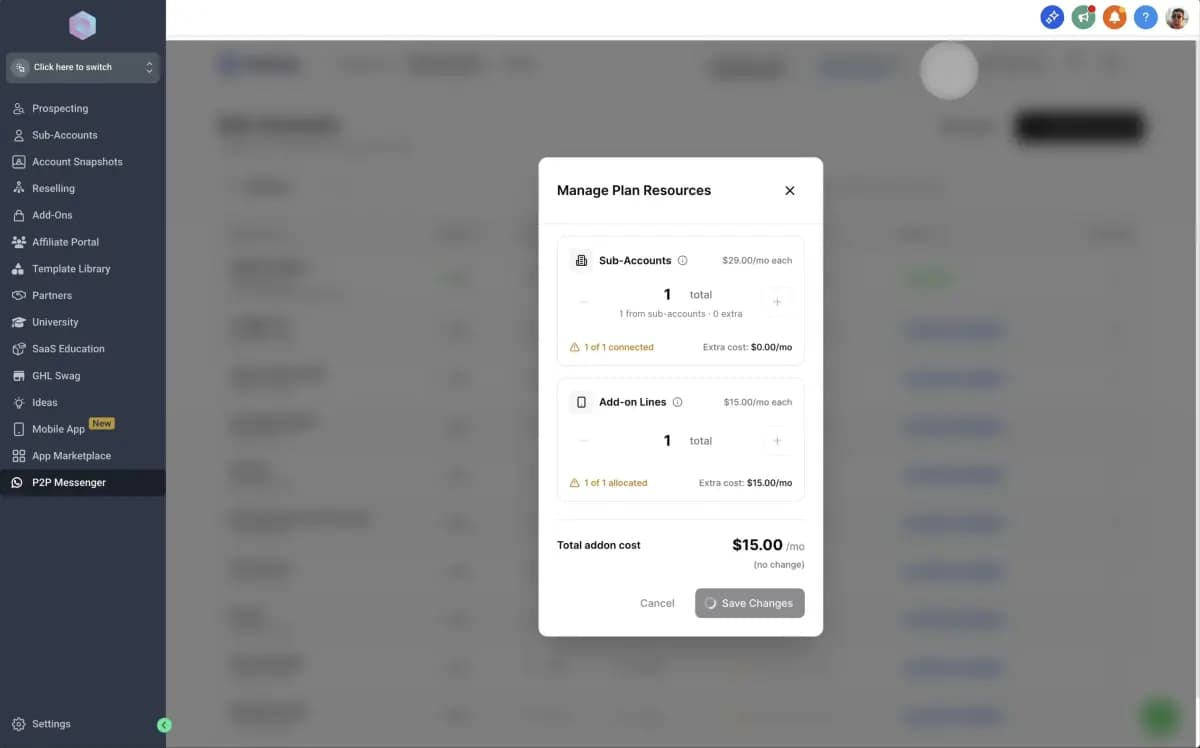
Use the + and − buttons to adjust quantities. Sub-Accounts cost $29/mo each and Add-on Lines cost $15/mo each.
When you confirm, WhatSnap prorates the cost based on your current billing cycle — so you can purchase at any point in the month without paying for the full period.
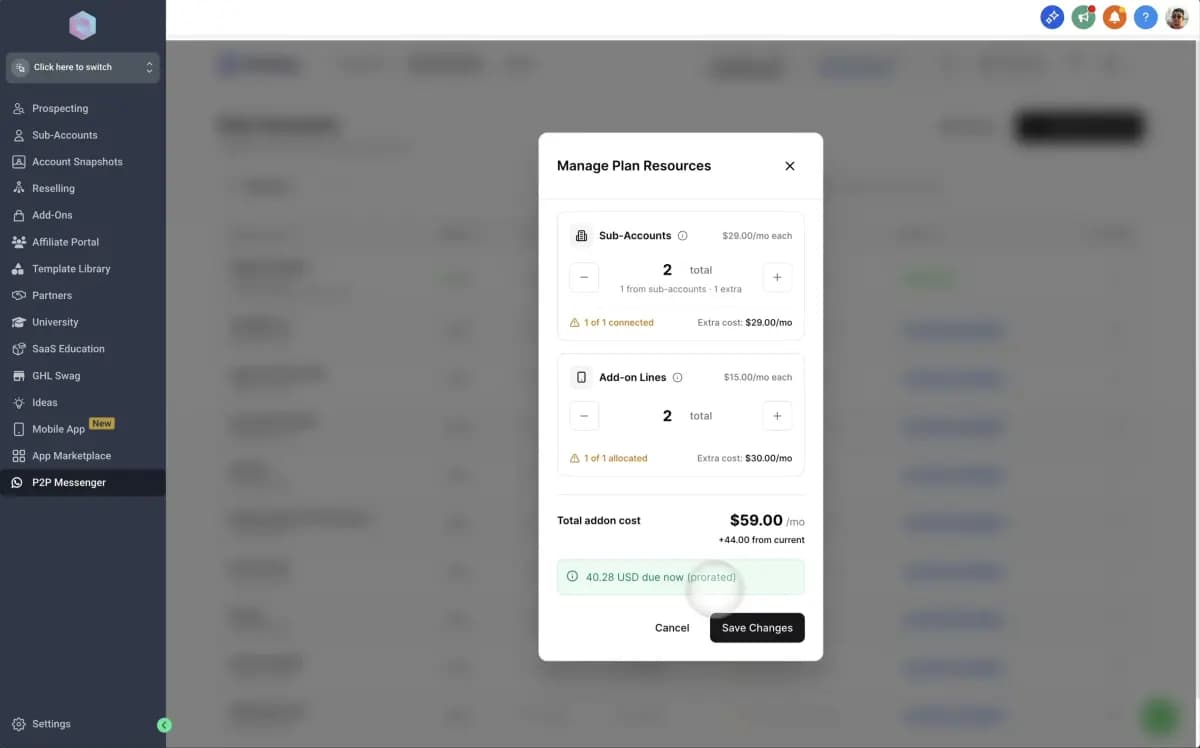
No need to wait for a new billing cycle. Buy resources whenever you need them — you'll only be charged for the remaining days in your current period.
Activating a Subaccount
Activation assigns a WhatSnap license to a GHL subaccount, enabling messaging functionality.
Navigate to Agency View
Open the WhatSnap Manager and click Agency View in the left sidebar. You'll see a list of all your GHL subaccounts.
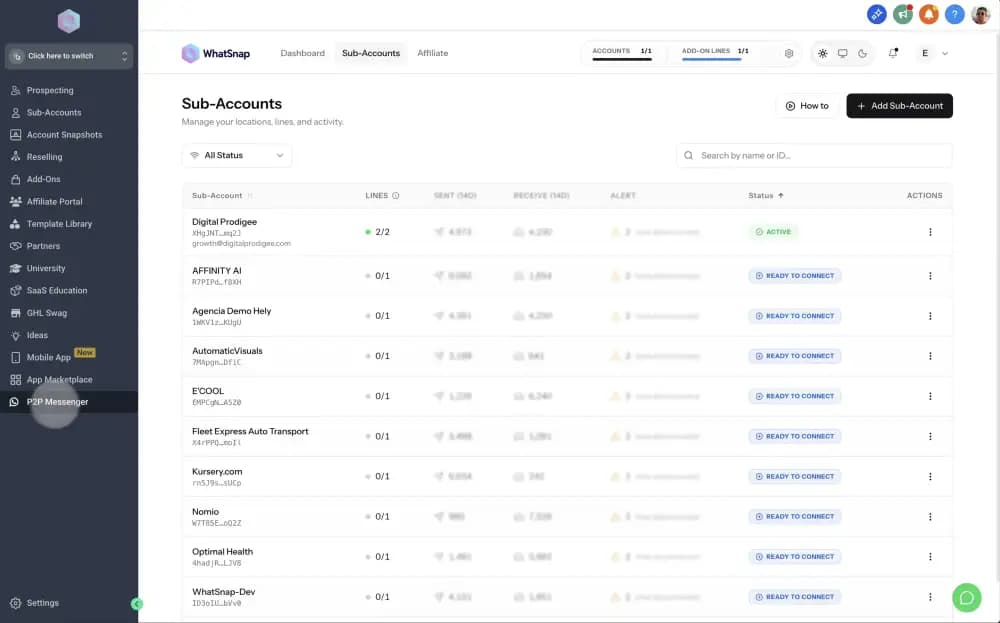
Select Connect Account
Find the subaccount you want to activate. In the Actions column, click Connect Account.
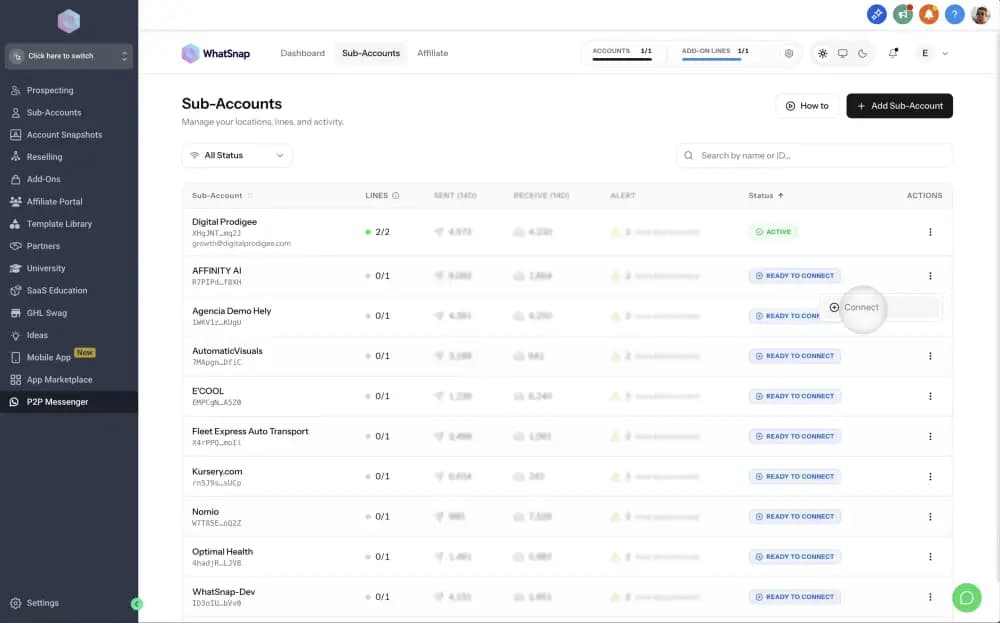
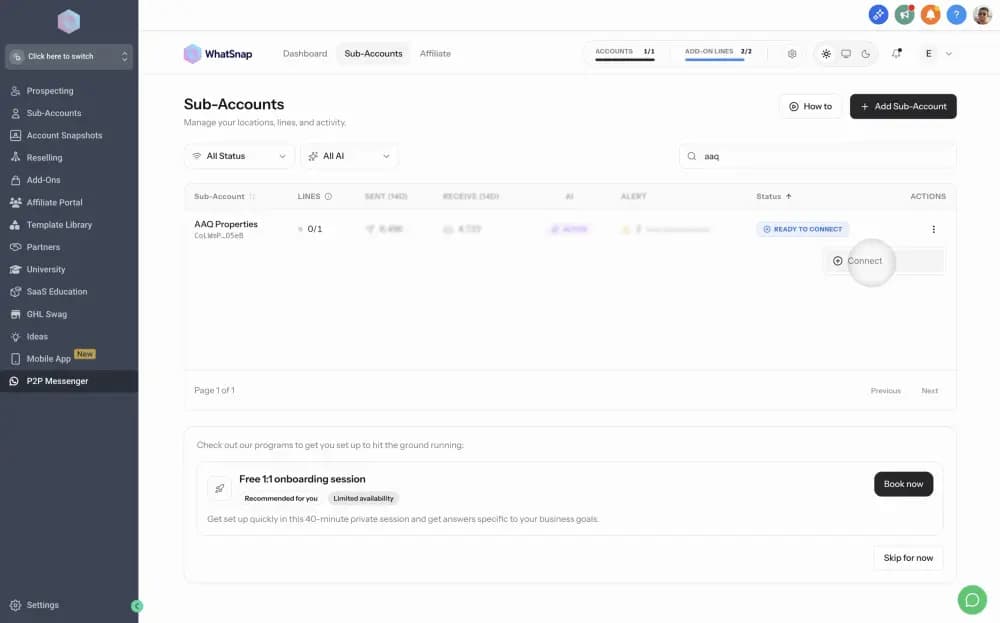
Confirm License Allocation
A modal will appear showing the subaccount details. Click Connect to allocate a license.
Verify Activation
The subaccount status will change to Active, and you'll see it now has 1 line available (the included free line).
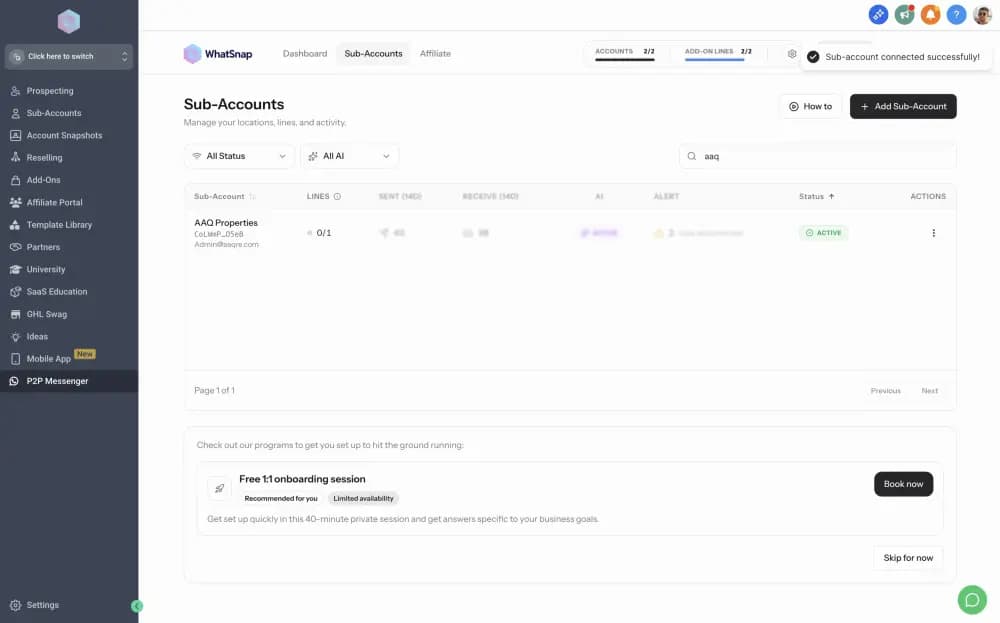
The subaccount is now active. The included line still needs to be connected to a device before you can start messaging.
Allocating a Line
Lines must be allocated to a subaccount before they can be connected to devices. Every activated subaccount gets one free line automatically — follow these steps to allocate additional lines.
Navigate to the Subaccount
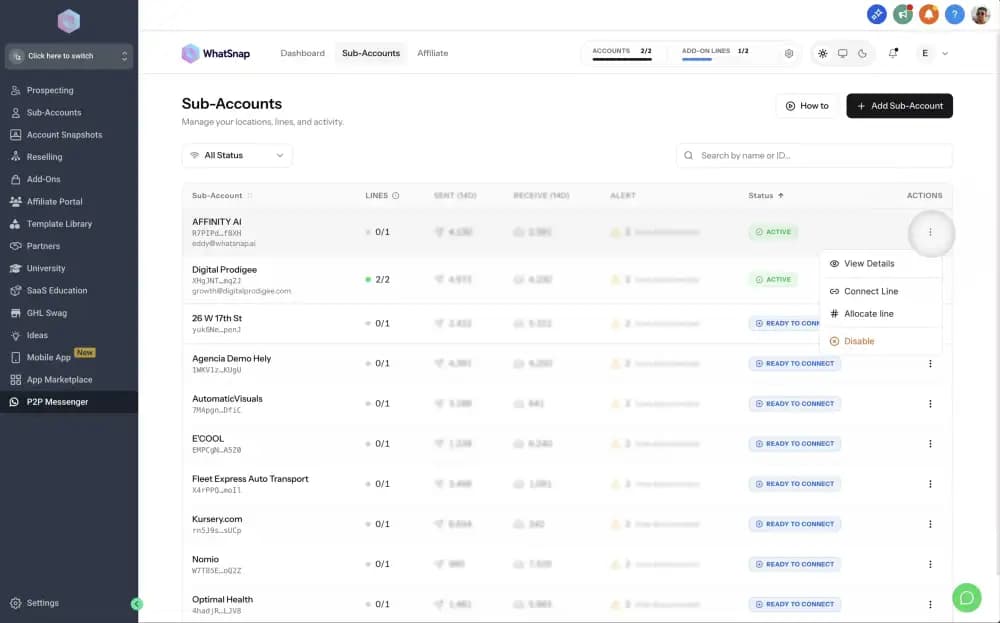
In Agency View, find the subaccount where you want to add a line. Hover over the line count to see available actions.
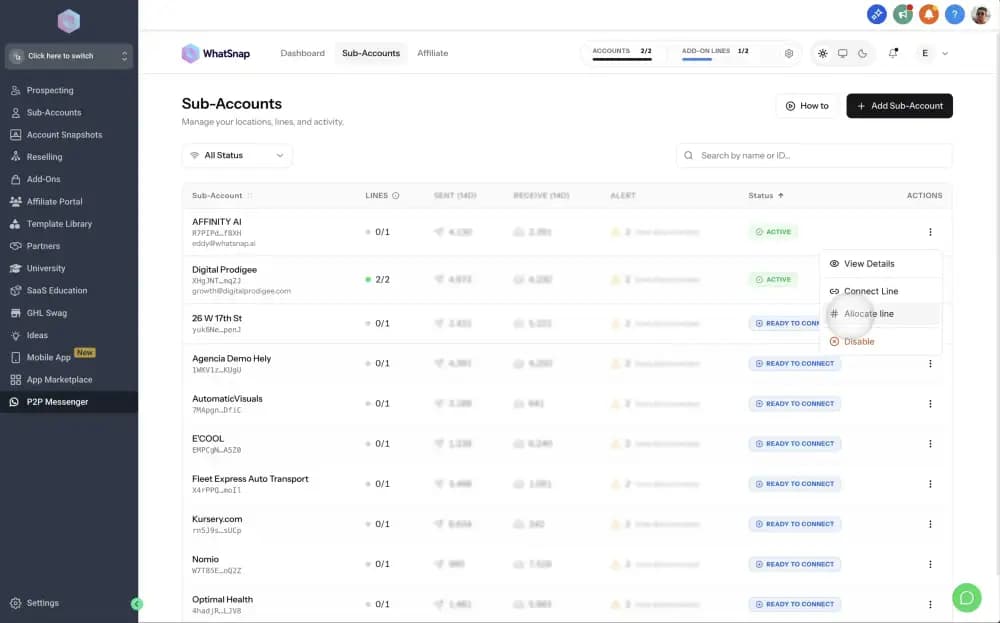
Select Allocate Line
Click Allocate Line from the actions menu. A modal will appear showing your available line inventory.
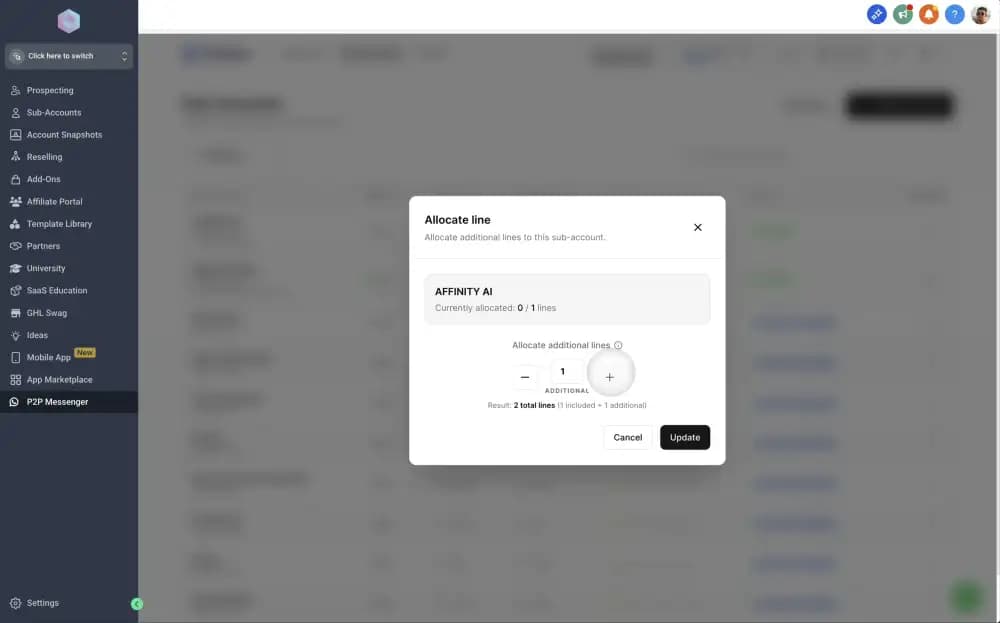
Confirm Allocation
Click Allocate to assign the line. This adds one available line slot to the subaccount — the user decides which channel (iMessage, SMS, WhatsApp, or Twilio) to use when they connect a device.
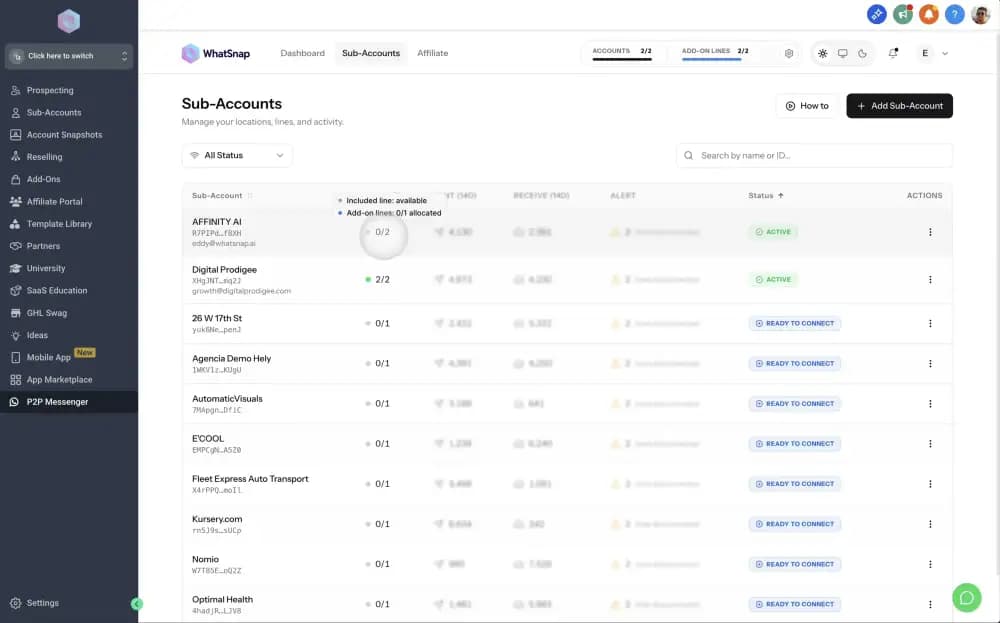
Verify
The subaccount's Available Lines count will increase. The line is now ready to be connected to a device.
Allocate lines before asking team members to connect devices. They won't be able to add a device if no lines are available in their subaccount. Need more lines? See Purchasing Additional Resources.
Deallocating a Line
Deallocating removes a line from a subaccount and returns it to your agency's available pool. This is useful when moving resources between clients.
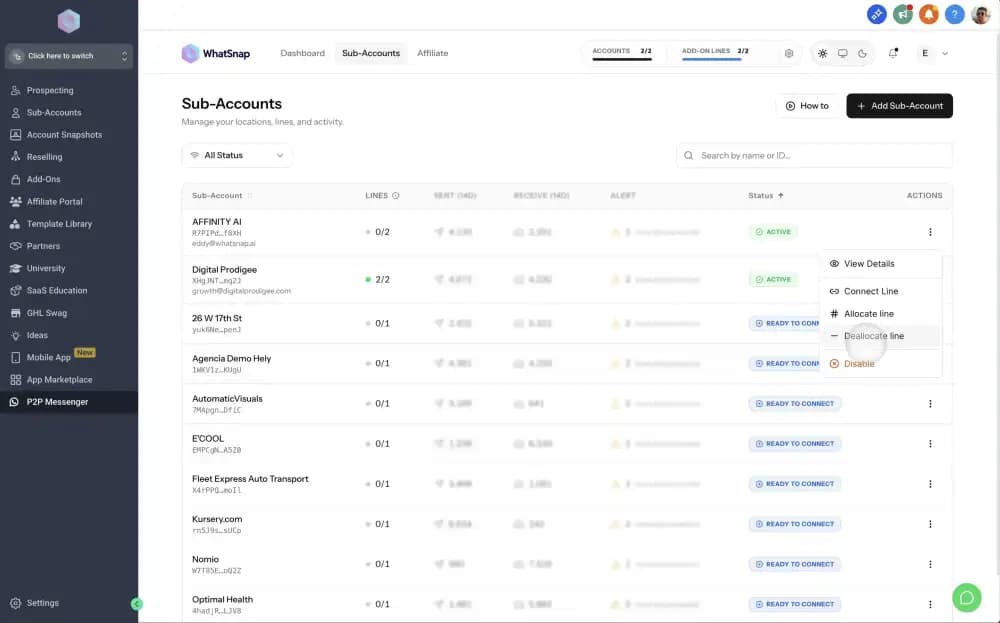
Open the subaccount menu
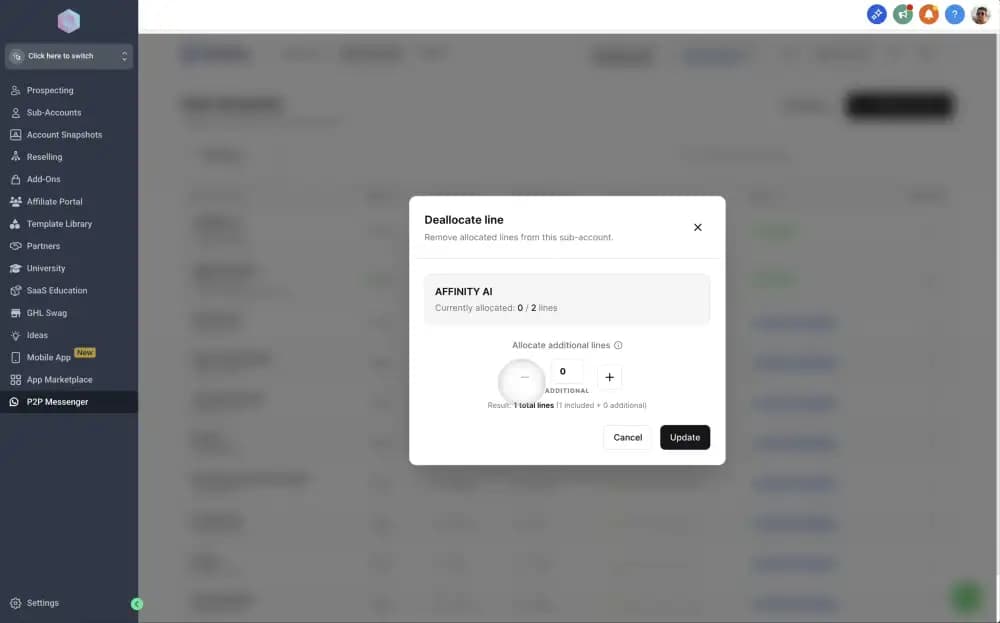
In Agency View, find the subaccount you want to remove lines from. Click the three dots (⋮) in the Actions column and select Deallocate line.
Choose how many lines to remove
A modal will show the subaccount name and its current allocation. Use the + and − buttons to select how many lines you want to deallocate, then click Update.
Verify
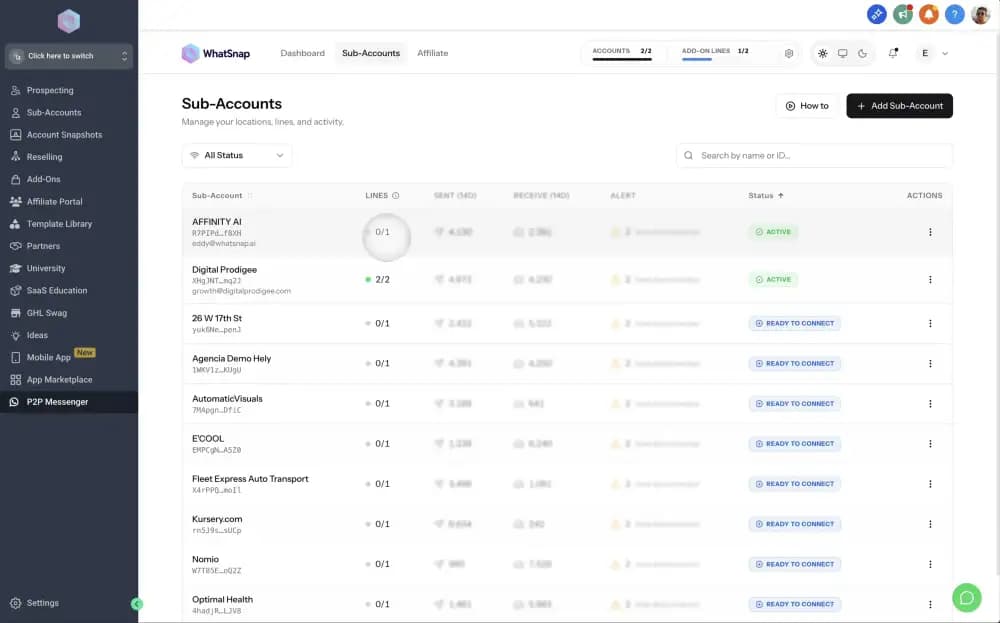
The subaccount's line count will decrease in the Agency View, and the deallocated lines return to your available inventory.
If a line is connected to a device when you deallocate it, the device will be disconnected immediately and messages will stop sending from that line.
Deactivating a Subaccount
Deactivation removes the WhatSnap license from a subaccount, returning it to your available pool.
- Go to Agency View
- Find the active subaccount
- Click the Status dropdown
- Select Deactivate
Deactivating a subaccount disconnects all lines associated with it. Messages will stop sending immediately.
Naming Conventions
When managing lines across multiple subaccounts, use descriptive names to keep things organized:
ClientA-Android-1SalesTeam-WhatsApp-2Closers-iMessage-Main
This makes line switching and troubleshooting much easier at scale. You can edit names in WhatSnap Manager → Lines → three dots → Edit Tag.
For agencies: See the Agency Scaling Guide for infrastructure models, client pricing strategies, and SOPs for managing dozens of subaccounts.
Common Scenarios
| Scenario | Steps |
|---|---|
| New client onboarding | Activate subaccount → allocate additional lines if needed → share connection instructions |
| Seasonal reallocation | Deallocate extra lines from low-demand clients → allocate them to high-demand clients |
| Client offboarding | Deallocate all lines → deactivate subaccount → license and lines return to your pool |
Resource reallocation is instant. You can move licenses and lines between subaccounts without waiting periods.
Handling Allocation Errors
"No licenses available"
Cause: You've activated all subaccounts included in your plan.
Solution: Upgrade your plan or deactivate an unused subaccount to free up a license.
"No lines available"
Cause: You've allocated all lines from your inventory.
Solution: Purchase additional lines, or deallocate lines from subaccounts that aren't using them.
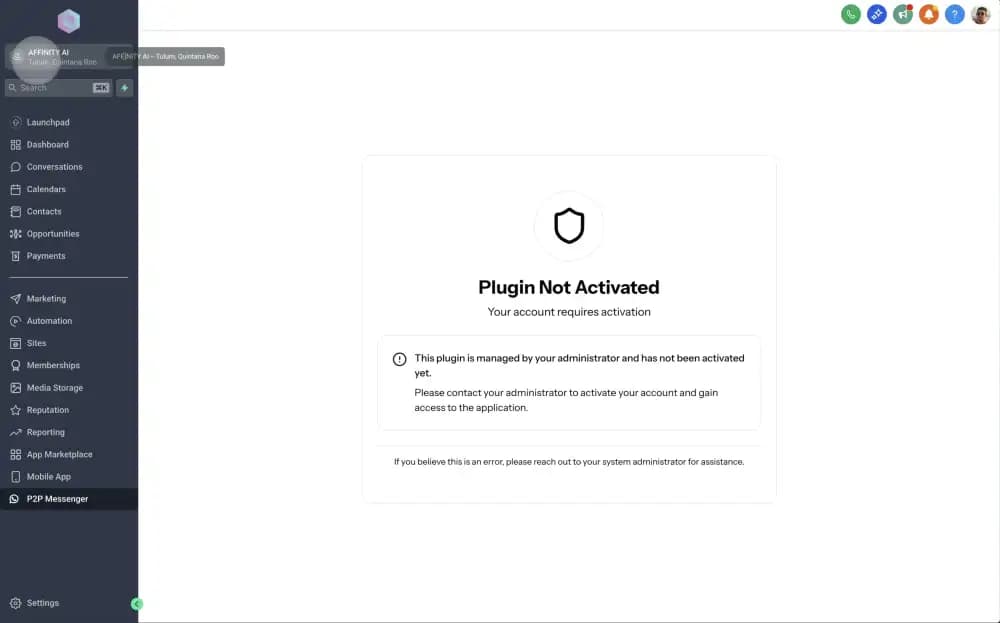
"Cannot deallocate line"
Cause: The line is currently connected to a device.
Solution: Disconnect the device first from within the subaccount, then deallocate the line.
Related
Last updated on February 8, 2026